LinkedIn gives every member a QR code, and you find it in the mobile app: tap the QR icon in the search bar, then the My code tab. Anyone you show it to can scan it from inside LinkedIn and land on your profile, which makes it a quick way to connect without spelling out a name. That covers one-to-one handshakes.
For anything printed, projected or left behind, you probably want a second option: a LinkedIn QR code you generate yourself from your profile URL or, better, from a short link that redirects to it. The built-in code does not report scans, and a code that encodes a bare URL is frozen the day you print it. This guide covers both routes, where each belongs (business cards, conference badges, slide decks) and how to print the result so it scans.
Find the Built-In LinkedIn QR Code
The steps below come from LinkedIn's help page on QR codes, which I re-read before writing this. Menu labels move between app versions, so treat the wording as a guide, and update the app first if you do not see the icon.
- Open the LinkedIn mobile app.
- Tap the QR code icon in the search bar at the top of the home screen.
- Open the My code tab (shown as MY CODE on Android).
- On iOS, tap Share my code to send it by message, email or another app, or use Save to photos. On Android, use SAVE TO GALLERY.
When I checked, the help page listed sharing as coming soon on Android, so saving to the gallery and sending the image from there is the workaround. The page also says each member has their own unique code, and it documents the code only inside the mobile app. It does not describe a desktop route, and it does not say what the code encodes, so I will not claim to know.
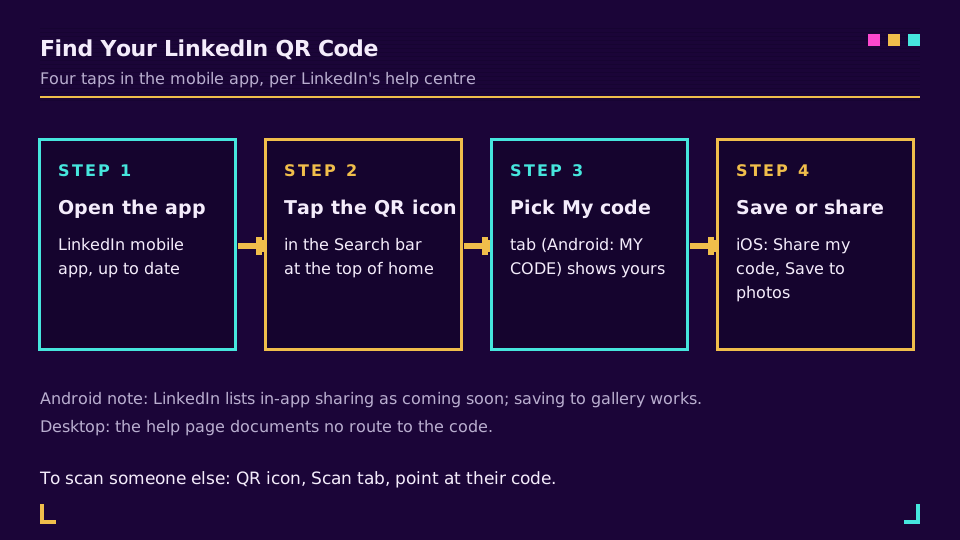
Scanning someone else's code uses the same icon. Tap it, choose the Scan tab, and hold the phone over their code, or pick a saved image with Scan from photos on iOS or ADD CODE FROM GALLERY on Android. After a scan you land on their profile and can send a connection request. Android needs camera access switched on first.
What the Built-In Code Does Well, and Where It Stops
Face to face, the built-in code is hard to beat. It lives in an app you already have open at a conference, it takes two taps, and there is nothing to design or print.
It stops being the right tool the moment the code leaves your phone. The help page describes scanning in the app's own Scan tab, so a printed copy depends on the viewer opening LinkedIn first. I would test a stock camera on a printed proof before trusting it on 300 badges. And because LinkedIn is the only party in the middle, you get no scan count: three placements, one profile, no idea which one earned the connection. Our Instagram QR code guide walks through the same limit on another platform.
Make Your Own LinkedIn QR Code From a Profile URL
A QR code is just a URL turned into a pattern, so any generator will make one from your public profile address. Open your profile, copy the link (it looks like linkedin.com/in/your-handle), paste it into a generator and export. The general process is in how to create a QR code, and it takes about a minute.
Two details matter for print. Export SVG rather than a small PNG, since vector stays sharp at any size. And clean up the address first: a custom public profile URL is shorter than the default one with the numeric suffix, and a shorter payload means a sparser, easier-to-scan code. LinkedIn's help centre says a custom URL can be 3 to 100 characters, with no spaces or symbols, and that you can change it up to five times in six months. Shortening a LinkedIn link covers the edit itself.
Static or Dynamic: What Happens When Your URL Changes
This is the decision that decides whether your printed codes age well. A static code encodes the profile URL directly. It works offline, it needs no service, and it can never be edited. If you later change your handle, the old code still points at the old address.
LinkedIn's help page says a replaced custom URL stays linked to you for six months unless you unlink it, and that after you unlink it, others can claim it after seven days. That is a grace period, not a guarantee, and a box of business cards outlives it. A dynamic code encodes a short link instead. The short link redirects to your profile, and when the profile address changes you edit the link's destination once. Every printed code keeps working. Dynamic vs static QR codes explains the mechanics.
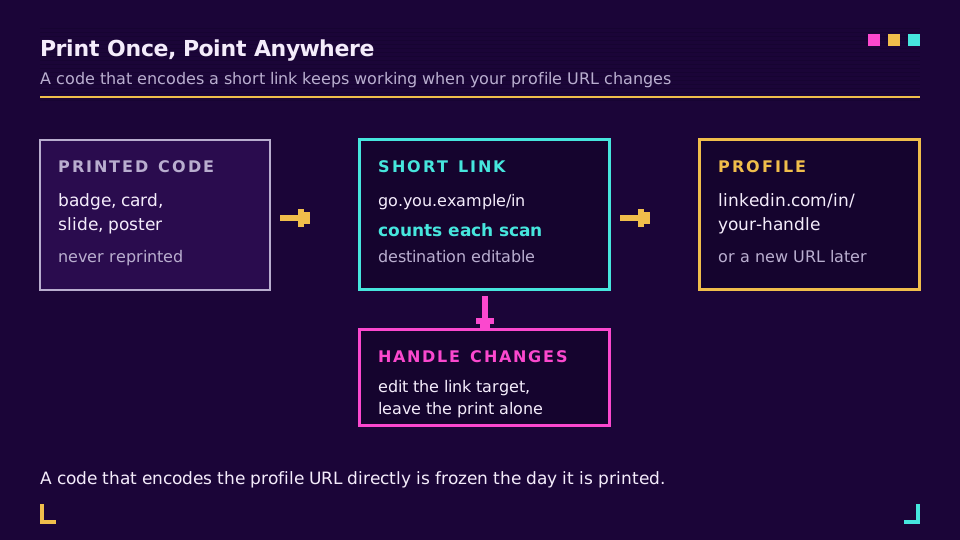
The same indirection is why the vCard approach to business cards leans dynamic: details change, print does not. Which brings us to where these codes actually go.
Where to Put a LinkedIn QR Code
Pick the destination per surface, because a profile is not always the right landing spot.
- Business cards. The code replaces a typed URL nobody will type. Print the short link in small text beneath it as a fallback.
- Conference badges and booth signs. People scan at arm's length while walking, so size matters more than style here.
- Slide decks. Put it on the last slide, large, and leave it up through questions. A projected code is read from the back of a room.
- Email signatures and CVs. A short link works better than an image in plain-text mail.
Sales and hiring teams are the heaviest users, since the whole job is turning a conversation into a connection. If that is you, URL shorteners for recruiters and for B2B sales cover the surrounding workflow.
Track Scans With a Short Link
A scan on a code that encodes a short link is a redirect you can see. With Elido you create the short link, point it at your profile, and generate the QR from it, so each placement gets its own link and its own count. The dashboard shows scans over time, with country and device per scan. If you use your own domain, the code stays yours even if you change tools later; custom domains are covered on their own page.
Make one link per surface: one for the badge, one for the card, one for the deck. After the event, compare the counts. You will learn which placement worked, which is more than a connection list ever tells you. The setup is in how to track QR code scans. When you are ready, create a branded QR code for your profile and give every placement its own link before anything goes to the printer.
One honest limit: a scan count says that someone opened the link. It does not say that they connected, and it cannot show who they were.
Design and Print Tips That Keep It Scannable
Most failed codes fail on paper, not on screen. Five checks catch nearly everything.
Size. A common rule of thumb is a printed width of about one tenth of the scanning distance, so a card read at arm's length wants roughly 2.5 cm, and a slide read from ten metres wants far more. How big should a QR code be has the worked numbers.
Contrast. Dark modules on a light background, every time. Inverted or low-contrast colour pairs look good on a mock-up and fail in a dim venue.
Quiet zone. Keep a clear margin of four modules on every side. Layout tools crop it more often than you would expect.
Error correction. Higher levels recover more of a damaged or covered code but make the pattern denser. For a plain code on a card, a middle level is fine; if you add a logo, step up. QR code error correction levels shows what each level costs. Encoding a short link keeps the pattern sparse, which gives you headroom to spend here.
Finish. Glossy stock and varnish throw glare under spotlights. Scan the real printed proof in the real lighting, not the screen. If it still misbehaves, why a QR code is not scanning walks through the causes, and branded QR code design covers logos and colours without breaking the pattern.
Read the Cornerstone Series
This post belongs to the tutorials cluster. For the full printed workflow, a QR code campaign from scratch covers planning through measurement, and what is a QR code is the place to start if the basics are new.
Related on the Blog
Frequently asked questions
How do I find my LinkedIn QR code?
Open the LinkedIn mobile app, tap the QR code icon in the search bar at the top of the home screen, and open the My code tab. On iOS you can share it or save it to photos; on Android you can save it to your gallery. LinkedIn's help page lists in-app sharing on Android as coming soon, so check your version.
Can I get my LinkedIn QR code on desktop?
LinkedIn's help page only documents the code inside the mobile app. On a laptop the practical route is to generate your own QR code from your public profile URL, which gives you a file you can drop into a slide deck or an email signature.
How do I make a QR code for my LinkedIn profile URL?
Copy your public profile URL (linkedin.com/in/your-handle), paste it into any QR generator, and export the code as an SVG for print. If you want scan counts or the freedom to change the destination later, encode a short link that redirects to the profile instead of the raw URL.
What happens to my QR code if I change my LinkedIn URL?
A code you generated from the old URL keeps pointing at it. LinkedIn says a replaced custom URL stays linked to you for six months unless you unlink it, so there is a window, but a printed code is meant to last longer than that. A code that encodes your own short link does not care: you edit the destination and the print stays valid.
Can I track who scans my LinkedIn QR code?
Not with the built-in one, because LinkedIn does not report scans of it to you. A code built on a short link gives you a count per placement, with the country and device of each scan. It tells you how many scanned and from where. It does not identify the individual.
Why is my LinkedIn QR code not scanning?
Usually print quality, not the code. The usual causes are a printed size that is too small for the scanning distance, low contrast, a cropped quiet zone, a logo that covers too much of the pattern, or glare on a glossy finish. Print a proof and scan it with two different phones before the full run.
Try Elido
Paste a URL, get a working short link
No signup. Link lives for 30 days. Sign up to keep it forever.
Free, no signup required · 2 per day