One image at 1200 by 630 pixels, in PNG or JPEG, under about 1 MB, with the important content inside the middle 1080 by 600. That file renders correctly on Facebook, LinkedIn, X, Slack, Discord, WhatsApp, and iMessage, which is the whole answer to the Open Graph image size question for almost every site.
The dimensions are the easy part. They are not usually what breaks, either. What breaks is text sitting too close to an edge that one platform crops, an image that never updates because a crawler cached the old one months ago, or a card that renders with no picture at all because the file was 4 MB on a slow origin. The OG image size question is really three questions, and only one of them is about pixels. This guide covers the spec, the safe zone, the caching behaviour that makes people think their tags are wrong, and how previews resolve when the thing being shared is a short link. If your preview is missing entirely rather than badly cropped, link preview not showing is the diagnosis guide.
The Size, and Why It Is That Size
The 1.91:1 ratio comes from Facebook's link card, and it stuck because everyone else adopted a compatible layout rather than inventing their own. The Open Graph protocol itself says nothing about pixels at all; it defines og:image as a URL and leaves rendering to the consumer, which is exactly why a de-facto standard formed around one convenient size.
| Platform | Renders 1200x630 as | Worth knowing |
|---|---|---|
| Full-width card | The origin of the 1.91:1 ratio | |
| Full-width card | 1200x627 also fine, difference is invisible | |
| X | Large summary card | Needs twitter:card = summary_large_image |
| Slack, Discord | Inline unfurl | Crops to a shorter strip on narrow windows |
| WhatsApp, iMessage | Small thumbnail | Often near-square, so edges disappear |
Facebook's own guidance on sharing images puts the minimum at 200 by 200 and recommends the larger file for high-resolution displays, and X documents the card markup separately, which is the only place you need a platform-specific tag rather than a platform-specific file.
The Safe Zone Nobody Mentions
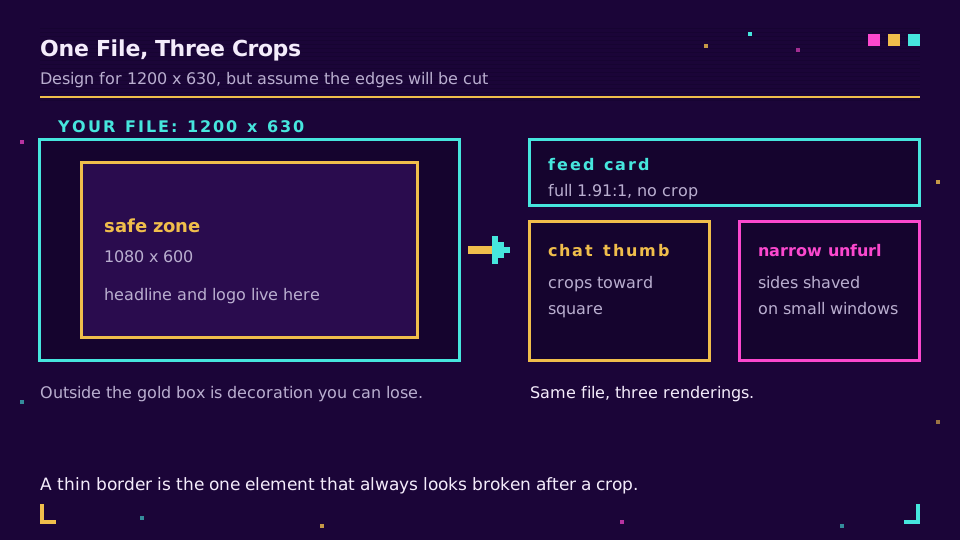
A card is rarely shown at the ratio you designed it in. Chat apps crop toward square for the thumbnail, some feeds shave the sides on narrow viewports, and a rounded corner eats the last few pixels of a corner logo.
Keep anything that must survive inside the middle 1080 by 600, centred, and treat the outer band as decoration you can afford to lose. In practice that means the headline sits centre-left rather than hard against the edge, the logo lives inside the margin rather than in the corner, and there is no thin border, because a border is the one design element that looks broken the instant it gets cropped.
Contrast matters more than it looks too. Cards render on white in one client and near-black in another, so an image that relies on the surrounding background for separation loses its edges in half of them.
The Tags Around the Image
Four tags do the work. Two of them are the ones people skip.
<meta property="og:image" content="https://example.com/og/spring-launch.png" />
<meta property="og:image:width" content="1200" />
<meta property="og:image:height" content="630" />
<meta
  property="og:image:alt"
  content="Spring launch: 30 percent off through May"
/>
<meta name="twitter:card" content="summary_large_image" />
The URL must be absolute, including scheme and host, because the crawler reads the tag with no page context to resolve a relative path against. Width and height let the platform reserve the right space before the file arrives, which is the difference between a card that appears instantly and one that reflows. And og:image:alt is the accessibility tag that costs nothing and is missing almost everywhere.
Why Your New Image Will Not Show
This is the one that generates support tickets. You fixed the image, you can see the new file at its URL, and the card still shows last quarter's design.
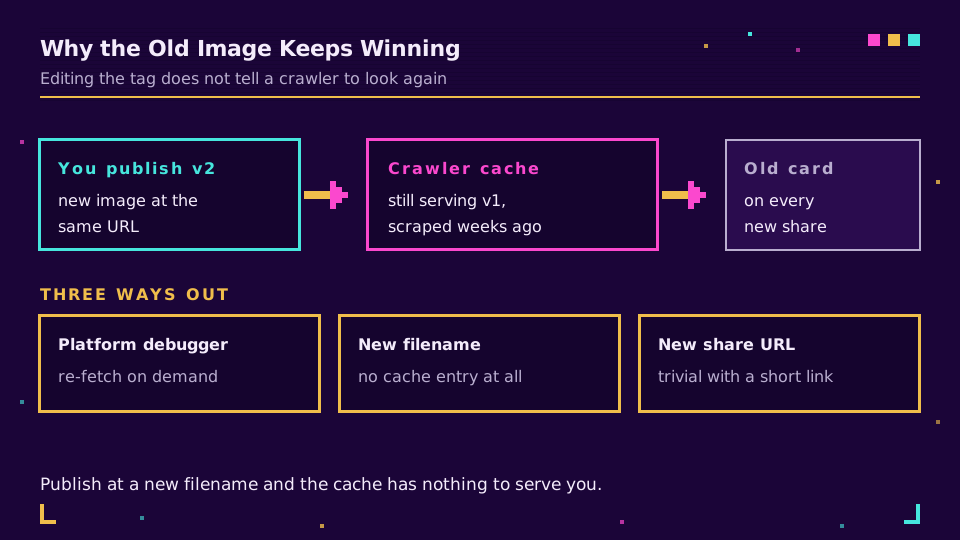
Social crawlers cache aggressively, and they are not subtle about it. Once a URL has been scraped, the stored version is what gets rendered for subsequent shares, sometimes for weeks, and nothing about editing your HTML tells them to look again. Three ways out, in the order I would try them:
- Force a re-scrape with the platform's own tool: Facebook's Sharing Debugger and LinkedIn's Post Inspector both re-fetch on demand.
- Publish the image at a new filename, which is a different URL and therefore has no cache entry at all. This is the reliable one.
- Change the shared URL itself, which is trivially easy when what you are sharing is a short link you control rather than a permanent page address.
Before you publish anything, the Open Graph checker shows you the card exactly as a crawler would build it, which takes ten seconds and saves the awkward reshare.
Previews When You Share a Short Link
A short link has no Open Graph tags of its own and does not need any. The crawler follows the redirect, lands on the destination, and builds the card from the tags there, which means a shortened URL inherits whatever preview the target page has. If the card is wrong, the tags on the destination are wrong.
Two things do depend on the link layer. The redirect has to be followable by a crawler, which is the normal case for a server-side hop but not for a JavaScript redirect, one more reason to keep the chain short and server-side. And because the preview belongs to the destination, repointing a short link changes its preview too, which is a quietly useful property when a campaign page is replaced after the link has already been shared.
If you want the link, the card, and the click data in one place, start a workspace on your own domain and check the card with the tool before the send rather than after.
A Checklist Worth Keeping
- 1200 by 630, PNG or JPEG, under 1 MB, absolute HTTPS URL. That is the whole OG image size decision.
- Nothing that matters outside the middle 1080 by 600, no thin borders.
og:image:width,og:image:height, andog:image:altpresent.twitter:cardset tosummary_large_imageif you want the big card on X.- New image, new filename, then re-scrape before announcing anything.
Get those five right once, template them into your page head, and Open Graph images stop being a thing you think about. Which is the correct amount of attention to give them.
Read the Cornerstone Series
This post sits in the tutorials cluster. For previews that fail outright rather than crop badly, link preview not showing is the platform-by-platform fix, and how to make a clickable link covers the layer underneath.
Related on the Blog
- Link preview not showing? Causes and how to fix it
- Shorten a link for X (Twitter): what t.co does to it
- How to track social media links: clicks by channel
- What is a branded link, and why it converts better
- How to redirect a URL: six ways, and when each is right
- Custom domain short links: DNS, TLS, and the edge
Frequently asked questions
What is the best Open Graph image size?
1200 by 630 pixels, an aspect ratio of 1.91:1, saved as PNG or JPEG and kept under about 1 MB. That single file renders correctly on Facebook, LinkedIn, X's large summary card, Slack, Discord, WhatsApp, and iMessage, which is why it has become the default rather than one size per network. Older advice suggesting 1200x627 or 600x315 still works, but there is no reason to use it.
Why is my og:image not updating?
Because the platform cached the old one. Social crawlers store what they fetched the first time and do not re-check on every share, so a new image can take days to appear on its own. Force a refresh with the platform's own tool, such as Facebook's Sharing Debugger or LinkedIn's Post Inspector, or publish the image at a new filename, which sidesteps the cache entirely.
How big can an og:image file be?
Keep it under 1 MB. Facebook accepts up to 8 MB, but crawlers fetch on a timeout, and a heavy file on a slow origin is the most common reason a preview renders with no image at all. Under 1 MB is fast enough everywhere, and a 1200x630 PNG of a simple layout usually lands between 60 and 300 KB.
Do I need a separate image for X and LinkedIn?
No. Both read og:image when no platform-specific tag is present, and both render 1200x630 without complaint. Add twitter:card set to summary_large_image if you want the large format on X, but the image itself can be the same file. One image, one URL, fewer things to forget when the page changes.
Where does the preview image come from when I share a short link?
From the destination page, not from the link. The crawler follows the redirect and reads the Open Graph tags on whatever page it lands on, so a short link inherits the preview of its destination. This is why a missing card after shortening is almost always a tag problem on the target page rather than a problem with the shortener.
Does the image need an absolute URL?
Yes. og:image must be a full URL including the scheme and host, because the crawler reads the tag out of context and cannot resolve a relative path. Serve it over HTTPS, and set og:image:width and og:image:height so the platform can lay out the card before the file finishes downloading.
Try Elido
Paste a URL, get a working short link
No signup. Link lives for 30 days. Sign up to keep it forever.
Free, no signup required · 2 per day