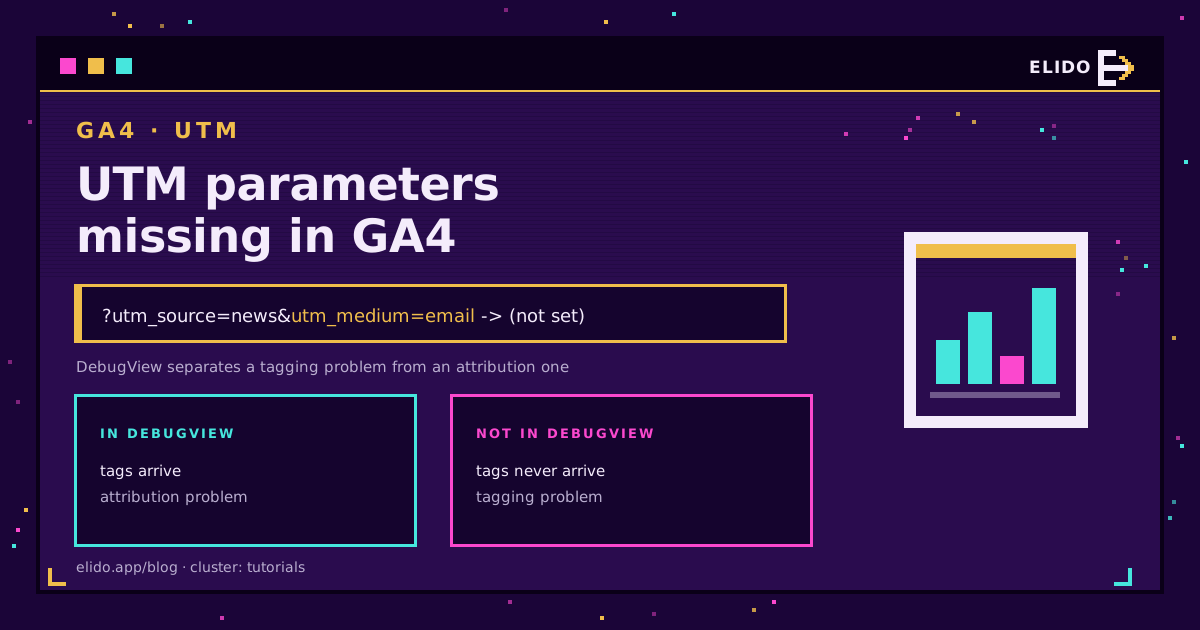
UTM tags that vanish in GA4 almost always fail for one of four reasons: the parameter name is not one GA4 reads, a redirect dropped the query string before the page loaded, the utm_medium value is not a channel GA4 recognises, or the report you are looking at is scoped differently from the data you expect. One test in DebugView splits those four into two groups in about a minute, and that is where to start.
This is the troubleshooting companion to UTM parameters explained, which covers what the tags are for, and track UTM campaigns end to end, which covers building them consistently in the first place.
Start With DebugView, Not With Theory
Standard GA4 reports are processed, modelled, and up to a day or two behind. That makes them a terrible debugging surface: you change something, see nothing, and cannot tell whether the fix failed or simply has not landed.
DebugView shows events as they arrive. Enable debug mode, open your own tagged link, and look at the page_view event's page_location.
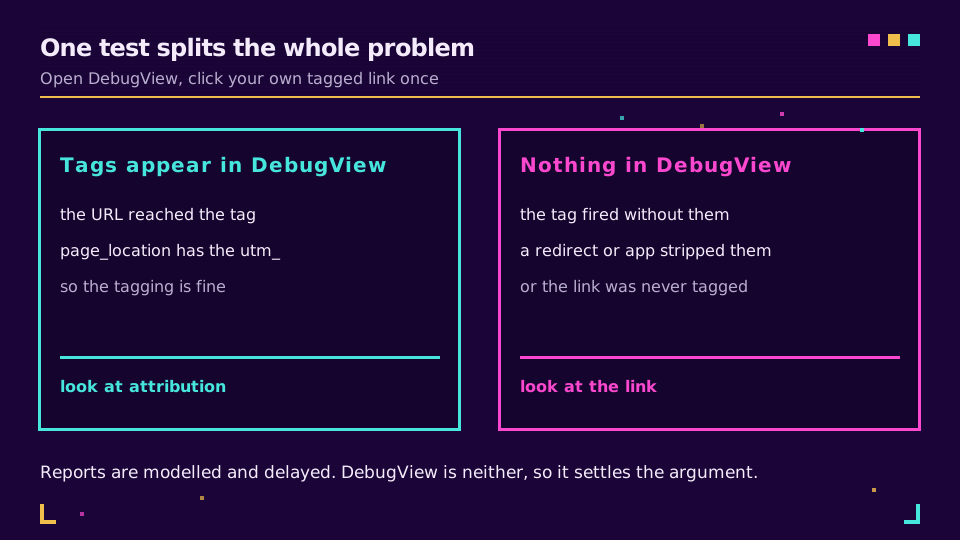
If page_location contains your utm_ parameters, the tags reached the tag. The problem is attribution, channel grouping, or which report you are reading. If it does not, the parameters never got there and the problem is the link itself or something between the click and the page.
That single split saves most of the afternoon people usually lose to this. If the missing data comes from server-side events rather than the page tag, the checks are different, and debugging the GA4 Measurement Protocol covers them.
GA4 Reads a Fixed List and Ignores the Rest
GA4 recognises utm_id, utm_source, utm_medium, utm_campaign, utm_term, utm_content, utm_source_platform, utm_campaign_id, utm_creative_format, and utm_marketing_tactic. Google's campaign data reference is the current list.
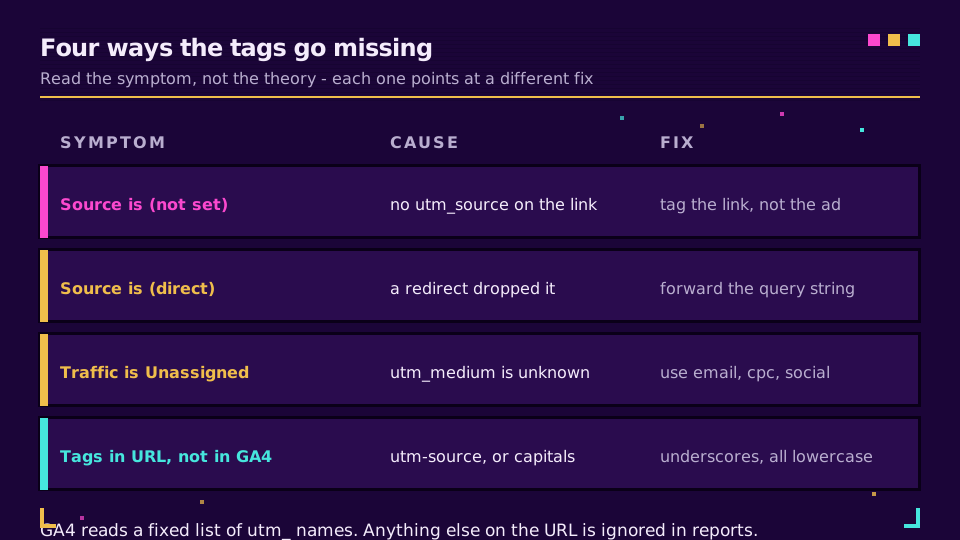
Anything else is ignored for campaign reporting. A tidy-looking utm_channel=partner or utm_agency=northstar will sit in the URL forever, appear in page_location, and never become a dimension you can group by.
Two spelling traps live here as well. The parameter name must be lowercase with underscores: utm-source and UTM_Source are not read. And values are case-sensitive, so Email and email become two separate rows that split one campaign in half.
The Redirect That Eats the Query String
This is the cause people find last, because the link looks right when they inspect it.
A visitor clicks example.com/sale?utm_source=newsletter&utm_medium=email. Your site redirects to www.example.com/sale, or to a locale path, or to a login page and back. If any hop in that chain rebuilds the URL rather than forwarding it, the tags are gone by the time the GA4 tag fires, and the session is attributed to direct.
Check it by hand: open the tagged link and read the address bar once the page settles. If the parameters are missing there, no amount of GA4 configuration will bring them back.
The same applies to a short link in front of the destination. A shortener should forward the entire destination URL, query string included, so tags on the destination survive the redirect intact. Tags on the short link alone are a different matter, and browsers that strip UTM parameters covers the newer failure mode where the browser removes them before the request is even made.
If you shorten links for campaigns, put the tags on the destination and keep the short link clean. That way the redirect carries them, and your own click data still tells you which channel the click came from before GA4 ever sees it. How to track link clicks covers reading that side.
Want a redirect that preserves the whole query string by default? Create a link on the free plan, tag the destination, and open it once to confirm the parameters land.
Unassigned Traffic Is a utm_medium Problem
Unassigned is not the same as (not set). Unassigned means GA4 got a campaign but could not fit it into any channel: no default rule matched, so it fell off the end.
The cause is nearly always a utm_medium value that reads well to a human and means nothing to GA4. newsletter, qr-code, flyer, and partner-blog all produce it. The default channel groups match on a fixed vocabulary, so use email, cpc, organic_social, referral, affiliate, and put the interesting detail in utm_source and utm_campaign where it belongs. If the campaign arrives correctly and the totals still disagree, that is a separate question: clicks versus GA4 sessions explains why the two counts are never equal.
If your organisation genuinely needs its own channels, build a custom channel group rather than bending the medium. That change applies to reports going forward and leaves the raw data untouched, which is the right trade.
Check the Scope of the Report You Are Reading
The last cause is not a bug at all.
GA4 has user-scoped dimensions (First user source / medium) and session-scoped ones (Session source / medium). A returning visitor who arrives through today's tagged email still carries their original first-user source, so a user-scoped report shows no sign of today's campaign while the session-scoped one shows it perfectly.
Before concluding anything is broken, confirm you are reading Session source / medium for campaign performance, and that the date range covers the traffic you sent. Standard reports also take up to 24 to 48 hours to settle, which is why the DebugView test above exists.
The Order to Work Through It
Read page_location in DebugView. If the tags are absent, look at the link and the redirect chain. If they are present, look at the medium value, then the channel grouping, then the report scope. Do not change three things at once, because GA4's reporting lag will hide which one worked.
Once it is fixed, the way to keep it fixed is to stop hand-building URLs. A UTM builder in the link shortener makes the medium a dropdown rather than a free-text field, which removes the entire class of typos above. UTM naming conventions covers the vocabulary a team can actually hold to.
Read the Cornerstone Series
This sits in the tutorials cluster. Start with UTM parameters explained, then track UTM campaigns end to end for the workflow. GA4 server-side tracking via redirects covers the case where client-side tagging is not enough on its own.
Related on the Blog
Frequently asked questions
Why are my UTM parameters not showing in GA4?
Usually one of four things: the parameter name is not on GA4's supported list, a redirect dropped the query string before the page loaded, the utm_medium value is not one GA4 recognises so the traffic lands in Unassigned, or you are reading a user-scoped report when the data is session-scoped. DebugView tells you which half of the problem you have in about a minute.
Which UTM parameters does GA4 actually read?
utm_id, utm_source, utm_medium, utm_campaign, utm_term, utm_content, utm_source_platform, utm_campaign_id, utm_creative_format, and utm_marketing_tactic. Anything else on the URL is ignored for campaign reporting, so a custom parameter like utm_channel will never appear as a dimension no matter how consistently you use it.
Why does GA4 show (not set) for source and medium?
(not set) means GA4 had no campaign value to attribute at that scope. The common causes are an untagged link, a landing page that redirected and lost the parameters, or a report row where the session simply had no campaign, such as a returning visitor in a user-scoped report.
Why is my tagged traffic showing as Unassigned in GA4?
Because utm_medium holds a value that no channel-grouping rule matches. GA4 assigns channels from a fixed set of medium patterns, so email, cpc, and social land correctly while newsletter or qr-code do not. Fix the medium, or create a custom channel group that recognises your values.
How do I test whether my UTM tags reach GA4?
Open DebugView, then open your own tagged link in a browser with debug mode on. If page_location in the incoming event carries the utm_ parameters, tagging works and the problem is attribution or reporting. If it does not, the parameters never arrived and the problem is the link or a redirect.
Can a URL shortener break UTM tracking?
It can, if the redirect drops the query string, and some do. A shortener should forward the full destination including every parameter, and the tags should be on the destination rather than on the short link alone. Test by opening the short link and reading the address bar after it lands.
Try Elido
Paste a URL, get a working short link
No signup. Link lives for 30 days. Sign up to keep it forever.
Free, no signup required · 2 per day