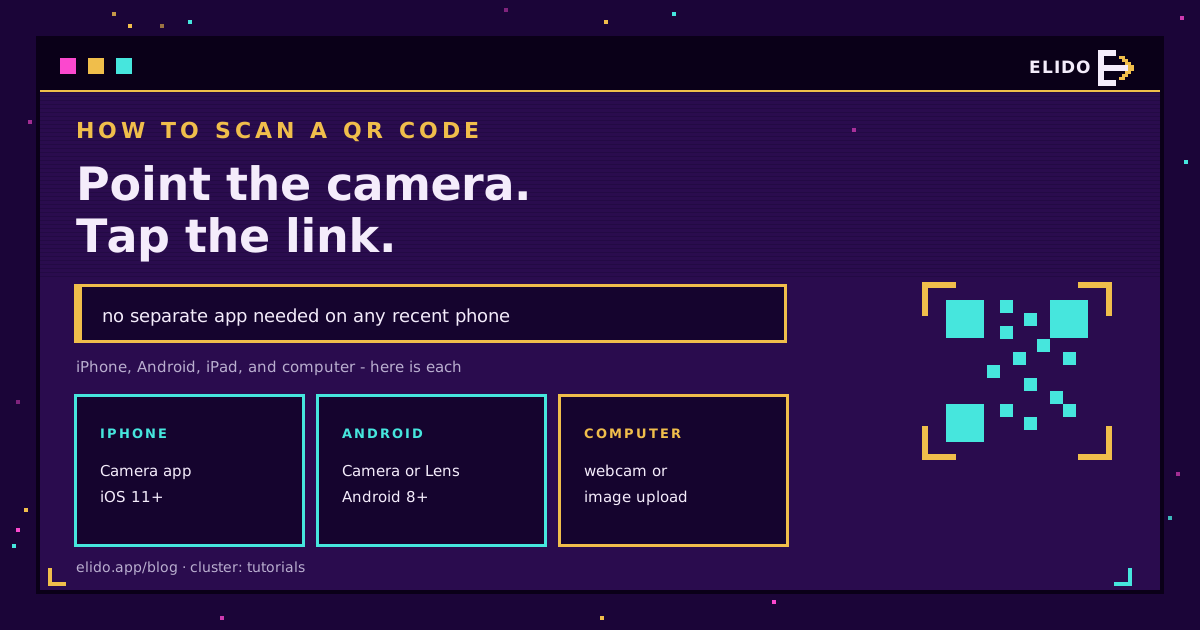
To scan a QR code, open your phone's camera app and point the rear camera at the code. A link notification appears in a second or two; tap it to open the destination. On any recent iPhone or Android phone you do not need a separate scanner app at all. That is the whole trick for most people, and the sections below cover each device, scanning from a saved photo, and the one safety habit worth keeping.
On iPhone and iPad
Apple built QR scanning into the Camera app back in iOS 11, so it has worked on every iPhone for years.
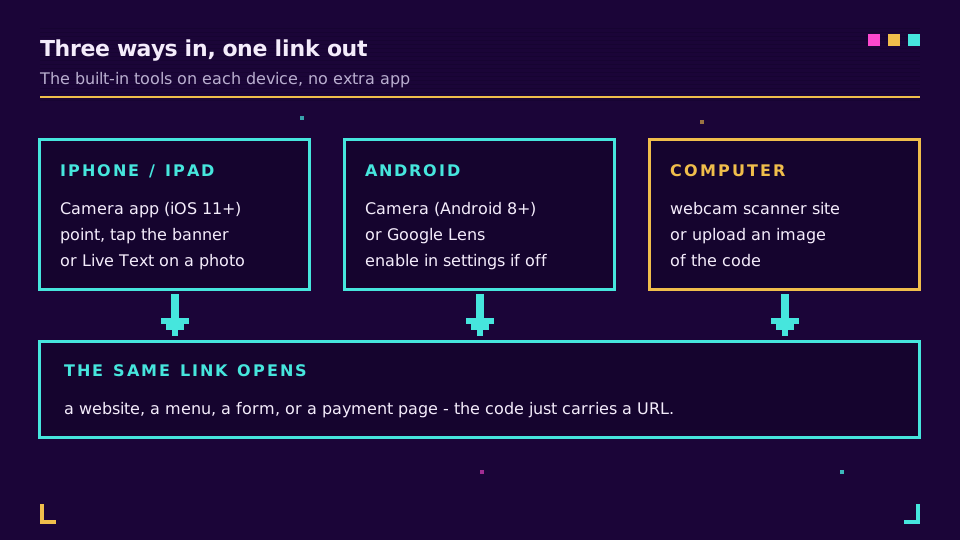
Open the Camera app, point the rear camera at the code, and hold steady. A yellow link notification drops down from the top; tap it to open the page. If nothing appears, check that you are on the rear camera and that scanning is enabled under Settings, Camera, Scan QR Codes. You can also add a dedicated Code Scanner tile to Control Centre if you scan often.
Already have the code saved as an image? Open it in Photos, press and hold the code, and Live Text surfaces the link to tap. iPad works exactly the same way.
On Android
Android has scanned codes natively since version 8, though the exact path varies a little by manufacturer.
Open the Camera app, point it at the code, and a link banner appears to tap. If your camera does not react, open its settings and switch on QR code scanning, which some phones ship turned off. Failing that, Google Lens reads codes reliably: open it from the Google app, from the Lens icon in Google Photos, or from the Assistant, and point it at the code.
Because the wording of these menus differs across Samsung, Pixel, and other brands, the fallback that always works is Google Lens. If the camera is being stubborn, reach for Lens rather than installing a third-party scanner.
On a Computer or Laptop
Codes do not only show up in the real world. Sometimes one arrives in an email or a slide on the same screen you are working on, and you cannot point a phone at your own monitor easily.
Two options. If your machine has a webcam, open a browser-based QR scanner, allow camera access, and hold the printed code up to the lens. If the code is a file or a screenshot, use a scanner tool that reads from an uploaded image instead, and drop the picture in to decode it. Both keep you on the computer without reaching for your phone.
How to Scan from a Photo or Screenshot
This is the case people miss most, and it needs no camera at all.
On iPhone, open the image in Photos, press and hold on the code, and tap the link Live Text finds. On Android, open the picture in Google Photos or the Google app and tap the Lens icon, which reads the code inside the image. It works for a code someone messaged you, a screenshot you took, or a code saved from a website, which is handy when the code and your phone are the same device.
What to Check Before You Tap
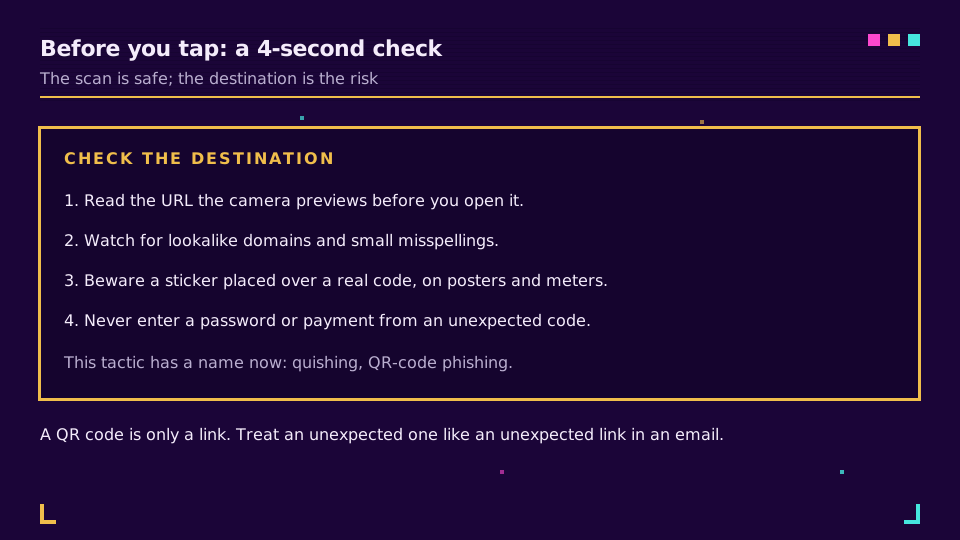
Here is the habit worth keeping. Scanning a code is completely safe, because a QR code is only a link. The risk is entirely in where that link goes.
Modern cameras preview the URL before you open it, so read it. Watch for lookalike domains, misspellings, and codes stuck over the top of a legitimate one on a poster or parking meter, a trick now common enough to have a name. A QR code carries no more and no less than the data encoded in it, and a link is the common case. Never type a password or payment details into a page you reached only through an unexpected code. We covered the tactic and how to stay ahead of it in are QR codes safe: the quishing guide.
Do You Still Need a QR Scanner App?
For almost everyone, no. The built-in camera on any iPhone from iOS 11 and any Android from version 8 reads codes natively, which covers the vast majority of phones in use. A separate scanner app adds another icon, another set of permissions, and usually a run of ads, in exchange for a feature your phone already has.
There are a couple of exceptions. A genuinely old device, from before native scanning arrived, does need an app, and Google Lens or a reputable free scanner fills that gap. Some warehouse and retail teams also use dedicated apps for bulk or continuous scanning, where reading dozens of codes in a row matters. Outside those cases, try the camera first and skip the download.
If the Code Won't Scan
When a code refuses to read, it is almost always one of four things.
Give it more light, hold the phone steady about 15 to 30 cm away, clean the camera lens, and make sure the whole code including its white margin is in frame. If it still fails, the code itself may be too small, too low-contrast, or damaged, none of which your phone can fix. A code printed properly, with good contrast and a clear margin, reads in under a second.
Making your own instead of scanning one? How to create a QR code walks through generating a code that actually scans, and Elido's QR codes produce trackable, editable codes over a short link. The difference between a static and an editable code is worth knowing first: dynamic vs static QR codes.
Related on the Blog
Frequently asked questions
How do I scan a QR code on my iPhone?
Open the Camera app, point the rear camera at the code, and wait a second. A notification with the link appears at the top of the screen. Tap it to open the destination. This works on any iPhone running iOS 11 or later with no separate app, and you can also scan from a saved photo using Live Text.
How do I scan a QR code on Android?
On Android 8 or later, open the Camera app and point it at the code; a link banner appears to tap. If nothing happens, open Camera settings and turn on QR code scanning, or use Google Lens from the Google app or Google Photos. Most recent Android phones scan codes with no extra app installed.
Can I scan a QR code without an app?
Yes, on almost any modern phone. The camera app on iPhone (iOS 11+) and Android (8+) reads QR codes natively, so you do not need a separate scanner app. Standalone scanner apps are rarely necessary and often carry ads, so try your built-in camera first.
How do I scan a QR code on a computer or laptop?
Use a browser-based scanner with your webcam, or scan from an image file. Open a QR scanner website, allow camera access, and hold the code up to the webcam, or upload a screenshot and let the tool decode it. This is how you scan a code that arrived on the same screen you are reading on.
How do I scan a QR code from a photo or screenshot?
On iPhone, open the image in Photos, press and hold the code, and tap the link that Live Text surfaces. On Android, open the image in Google Photos or the Google app and tap the Lens icon to read the code. This lets you scan a code you received in a message or saved earlier.
Are QR codes safe to scan?
Scanning is safe; acting on the result is where care is needed. A QR code is just a link, so the risk is a malicious destination, not the scan itself. Preview the URL before you tap, watch for lookalike domains, and never enter passwords or payment details on a page you reached only through an unexpected code.
Try Elido
Paste a URL, get a working short link
No signup. Link lives for 30 days. Sign up to keep it forever.
Free, no signup required · 2 per day