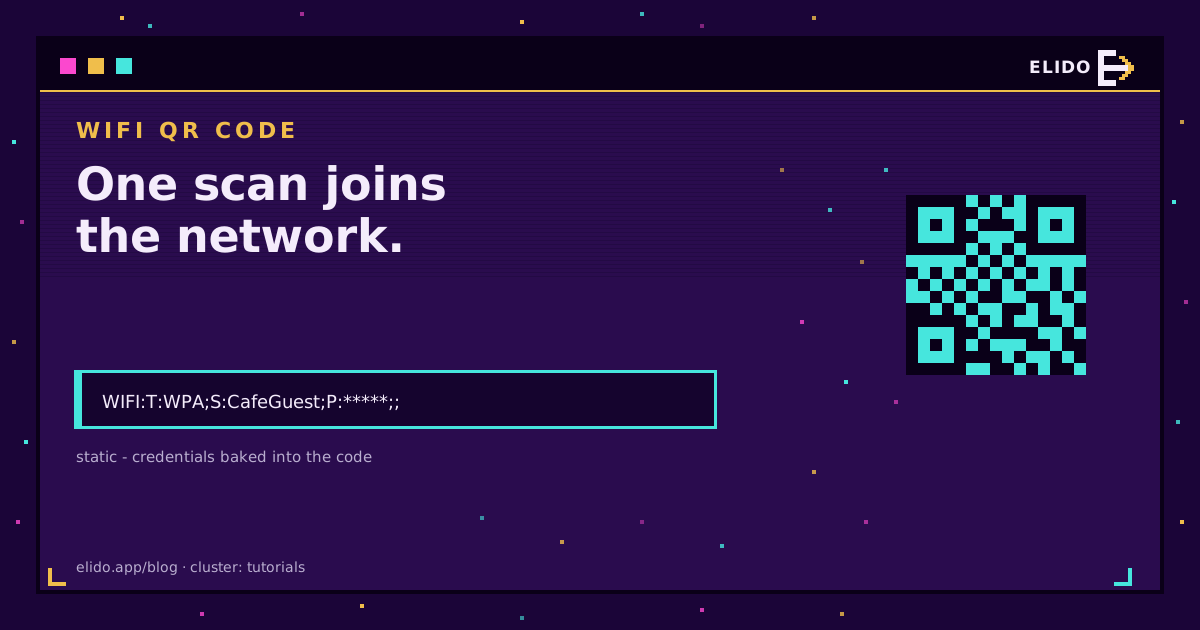
A WiFi QR code is a small square barcode that stores your network name and password inside its own pattern, so when a phone camera reads it the device joins the network without anyone typing a thing. You make one by handing your SSID, password, and security type to a wifi qr code generator, which packs them into a standardized WIFI: text string and renders it as a scannable code. The login lives in the code itself, not on any server, which is exactly why it's so quick and also why it can't be edited later.
That last point trips people up. A qr code for wifi is permanently static: change the password and the printed code is dead, so you reprint. Used in the right spot, though, like a cafe wall, a guest-room card, or a meeting-room table tent, it removes real friction. This guide covers the exact WIFI: format, how to escape awkward passwords, the WPA3 detail most tools get quietly wrong, and the security tradeoff that matters before you laminate anything. If QR codes are new to you in general, our walkthrough for creating any kind of QR code is the broader primer; this is the WiFi-specific version.
What a WiFi QR Code Actually Encodes
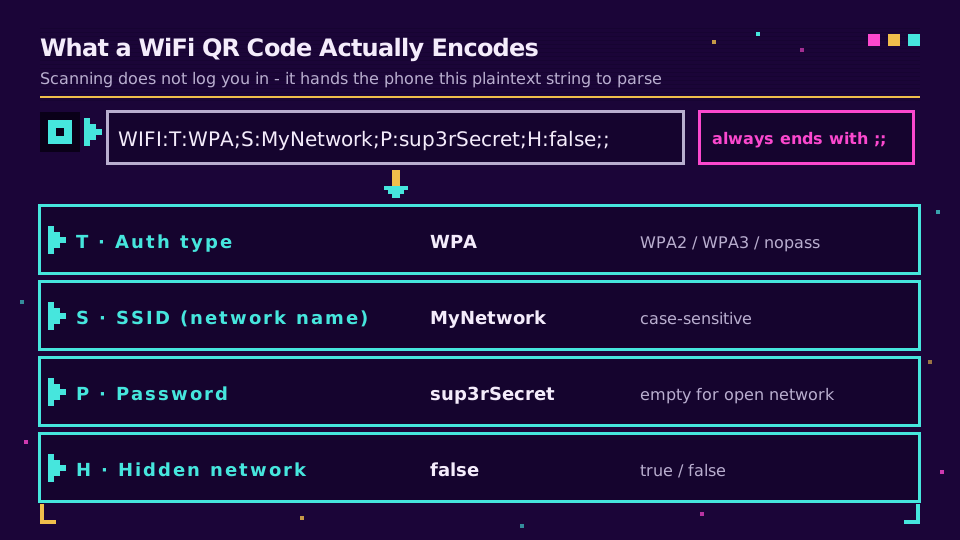
Scan a WiFi QR code with a plain barcode reader instead of the camera's connect prompt and you'll see the raw text it holds. It looks like this:
WIFI:T:WPA;S:MyNetwork;P:sup3rSecret;H:false;;
Every field does one job:
Tis the authentication type:WPA(which also covers WPA2 and WPA3),WEPfor old hardware, ornopassfor an open network.Sis the SSID, the network name, copied exactly. It's case-sensitive, and a stray space will break the match.Pis the password. Leave it empty for an open network.Hmarks a hidden network,trueorfalse. The whole string always ends with a double semicolon (;;).
This isn't part of the core QR standard. The QR symbol itself is just a container defined by ISO/IEC 18004; the WIFI: convention is a de-facto format that phone makers agreed to recognize, and its canonical description lives in the ZXing project's barcode-contents reference. Like a vCard contact card, a WiFi login is one of a handful of non-URL payloads a camera knows how to act on rather than just open in a browser, which is the same idea behind a vCard QR code on a business card.
How to Create a WiFi QR Code
The mechanics of how to create a wifi qr code are genuinely short, because the generator builds the string for you. You supply three things and download the result.
- Open a WiFi QR code generator, or check your router's admin app, since many now show a guest-network code built in.
- Type the SSID exactly as it broadcasts, capitalization, spaces and all.
- Choose the security type and enter the password, or pick "no password" for an open network.
- Download it as SVG or PDF for print, or PNG for a screen, and scan it with a real phone before you commit it to anything laminated.
escaping special characters in your password
Five characters are structural inside the WIFI: string: backslash, semicolon, comma, colon and double quote (\ ; , : "). If your SSID or password contains any of them, each one needs a backslash in front of it, or the string breaks and the code either fails or connects to something malformed. Escape the backslash first, then the rest, so you don't double-escape by accident. A password of Guest;123 becomes Guest\;123, and a password of a\b becomes a\\b. A good wifi qr code generator handles this for you, but if you're hand-building the string, say for a router config or a script, it's the step that bites.
WPA3, WPA2, and open networks
For a password-protected network, the type field is T:WPA whether the network runs WPA2 or WPA3. There's no separate WPA3 code: the phone and router negotiate the strongest protocol they share, so one WPA value covers all of them. The Wi-Fi Alliance treats WPA3 as password-based authentication using its SAE handshake under the hood, but the QR string still just reads WPA. A few strict WPA3-only setups on certain Android builds can be fussy about this, so test on the actual phones your guests use. For an open network with no password, set T:nopass and leave the password blank.
Static vs Dynamic: When You Actually Want a Trackable QR
Here's the honest limit of every WiFi QR code, and where a different kind of QR earns its place. A WiFi code is static by nature: the credentials are baked into the pattern, so it can't be edited and its scans can't be counted. That's fine for its one job. But the moment your goal shifts from "connect to WiFi" to "send people to a page I might change or want to measure", think a menu, a promo, a poster, a static code is the wrong tool.
A dynamic QR code solves that by encoding a short link instead of the final content. The scan hits a redirect you control, so you can repoint it later and every scan is logged. This is the split we cover in full in dynamic versus static QR codes, and it's where Elido actually fits: not in your WiFi code, but in the trackable, editable codes built on short links with QR built in. You can generate one from any link in the QR generator and read the results through scan analytics.
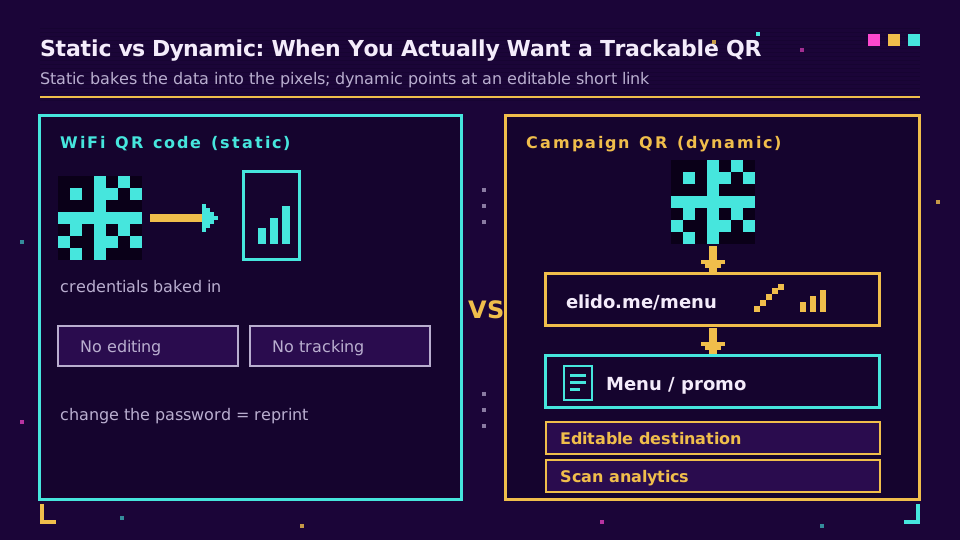
| Property | WiFi QR code (static) | Campaign QR via short link (dynamic) |
|---|---|---|
| What it encodes | Network credentials | A short redirect URL |
| Editable after printing | No, reprint to change | Yes, repoint anytime |
| Scan analytics | None | Total scans, place, device, time |
| Best use | Guest WiFi on a wall or card | Menus, posters, promos, print ads |
If what you actually need is a code you can repoint and measure long after it's printed, start a workspace and build a dynamic one.
WiFi QR Code Security and Guest Networks
A WiFi QR code shares your password in plain text. Anyone who scans it, even with a generic decoder app that never connects, reads the password straight off their screen. That's not a flaw to patch; it's how the format works, and it's completely fine for the setting it was built for.
So the real rule is about which network the code points at. A wifi qr code for guests should hand out a dedicated guest network, kept separate from the machines, drives, and back-office devices on your main network. Post the guest code freely; never turn your primary business or home network into a wall poster.
- Do point the code at an isolated guest SSID, and rotate that password on a schedule you can live with reprinting.
- Don't confuse this convenience code with a security threat like quishing, where a malicious QR sends you to a fake page, a separate risk covered in are QR codes safe.
I taped a laminated guest code next to the register at a friend's coffee bar last winter, and the effect was immediate: people stopped leaning over the counter to ask for the password mid-rush. Honestly, that spot, a cafe guest network on a wall, is the one place I think a printed WiFi code truly earns its keep.
Printing, Size, and Testing the Code
A WiFi QR code only helps if it scans on the first try, and a few print basics decide that. QR codes carry error correction in four levels, L through H, that let a scanner rebuild the pattern even when part of it is dirty or covered; those error-correction levels are part of the QR standard. For a WiFi code you rarely need more than the default, since there's no logo competing for space, but a few habits still matter.
Leave the quiet zone, the clear margin of about four modules around the code, or scanners struggle to lock on. Size it to the read distance; a rough guide is a tenth of that distance, so a table card read from arm's length can be small while a code on a far wall needs to be bigger. Keep strong contrast between the dark pattern and its background, and skip the pretty color pairs that fail under dim cafe lighting. If you do want brand color or a logo on a different, non-WiFi code, our branded QR code design guide shows how far you can push it before scans drop. Then test it: scan the final artwork with more than one phone, in the light it'll live in, before you print a stack.
Get those basics right and a WiFi QR code will sit quietly on the wall doing its one job for years, until the day you change the password, when you'll print a fresh one and move on.
Related on the Blog
- Dynamic vs static QR codes: which one breaks first
- How to create a QR code: static, dynamic, trackable
- How to track QR code scans and read the analytics
- Are QR codes safe? quishing and how to stay protected
- Wedding QR code: RSVPs, photos, and a code you can repoint
- What is a QR code, and how does scanning actually work?
Frequently asked questions
How do I create a WiFi QR code?
Enter your network name (SSID), password, and security type into a WiFi QR code generator, then download the image. The tool encodes those details into the standard WIFI: text string and renders a scannable code; save it as SVG or PDF for print. Test it with a phone before printing a batch, because the SSID and password are case-sensitive and easy to mistype.
Are WiFi QR codes safe to use?
A WiFi QR code is safe to scan but stores your password in plain text, so treat it as public. Anyone who scans it, even with a decoder that never connects, can read the password, which is fine for a guest network but wrong for a sensitive one. Point the code at an isolated guest network, never your main one.
Do WiFi QR codes expire?
No, a WiFi QR code never expires on its own; it keeps working as long as the network name and password stay the same. The code has no server behind it and no time limit, so it only stops working when you change the WiFi password or network settings. When that happens you have to generate and reprint a new code, since the old one can't be edited.
How do I scan a WiFi QR code on iPhone or Android?
Open the built-in camera app, point it at the code, and tap the connect prompt that appears. Both modern iPhones and Android phones read WiFi QR codes natively, so no separate app is needed. If nothing pops up, check that camera QR scanning is enabled in settings and that you're holding the phone steady enough to focus.
Can I edit a WiFi QR code after I print it?
No, a WiFi QR code is static and can't be edited after it's created. The credentials are baked into the pattern, so changing the network name or password means generating a brand-new code and reprinting. If you need something editable and trackable, that's a job for a dynamic QR code built on a short link, not a WiFi code.
Does a WiFi QR code work for WPA3?
Yes, a WiFi QR code works for WPA3, and you still use the WPA type in the string rather than a separate WPA3 value. The phone and router negotiate the strongest protocol they share, so one WPA setting covers WPA2 and WPA3. A few strict WPA3-only networks on certain devices can be picky, so test on the phones your guests actually use.
Try Elido
Paste a URL, get a working short link
No signup. Link lives for 30 days. Sign up to keep it forever.
Free, no signup required · 2 per day