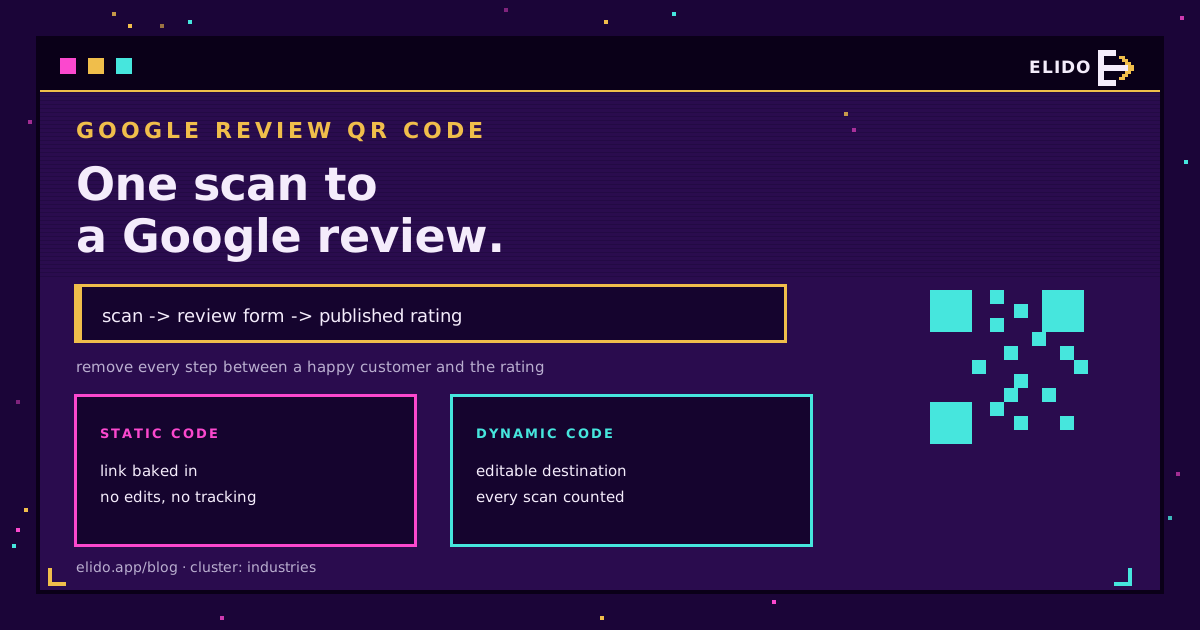
A Google review QR code is a scannable code that opens your Google review form directly, so a customer can leave a rating in a few seconds instead of searching for your business first. Point your phone camera at it, tap the link, and the review window is right there. For a shop counter, a receipt, or a table tent, that is the difference between a review you get and one you don't.
This is a practical walkthrough: how to get your review link, turn it into a code, place it where it gets scanned, and stay on the right side of Google's rules. If you are new to codes in general, how to create a QR code covers the basics first.
Why a Review QR Code Works
Reviews stall on friction. A customer who is willing to leave one still has to find your business on Google, scroll to the review section, and start typing, and most give up somewhere in there. A QR code collapses that into one scan.
The gain is real for anywhere with a physical touchpoint: restaurants, salons, clinics, trades, retail, hotels. The code goes where the customer already is, at the moment they are happiest, and removes every step between "I'd leave a review" and the rating screen. Volume and recency both improve, and recency is what Google surfaces.
Step 1: Get Your Google Review Link
Everything starts with the link, and it has to be the one that opens the review window, not just your listing.
On a computer, open your Google Business Profile and choose the option to ask for or get more reviews. Google generates a short review link, usually in the g.page/r/... form, with a copy button. That link drops the customer straight into the rate-and-write screen. Copy it. Note that Google currently generates review links and codes on desktop, not in the mobile app, so do this part at a computer.
If you manage several locations, each has its own review link. Keep them straight, because a code that sends a customer to the wrong branch is worse than no code.
Step 2: Turn the Link into a QR Code
Now you encode that link. Here the one real decision is static versus dynamic, and it matters more than the design.
A static code holds the review link directly. It is free and permanent, but it cannot be edited or measured. If the link ever changes, the printed code is dead. A dynamic code instead points at a short link you control, which redirects to the review page, so you can change the destination later and count every scan. We break the two apart in dynamic vs static QR codes.
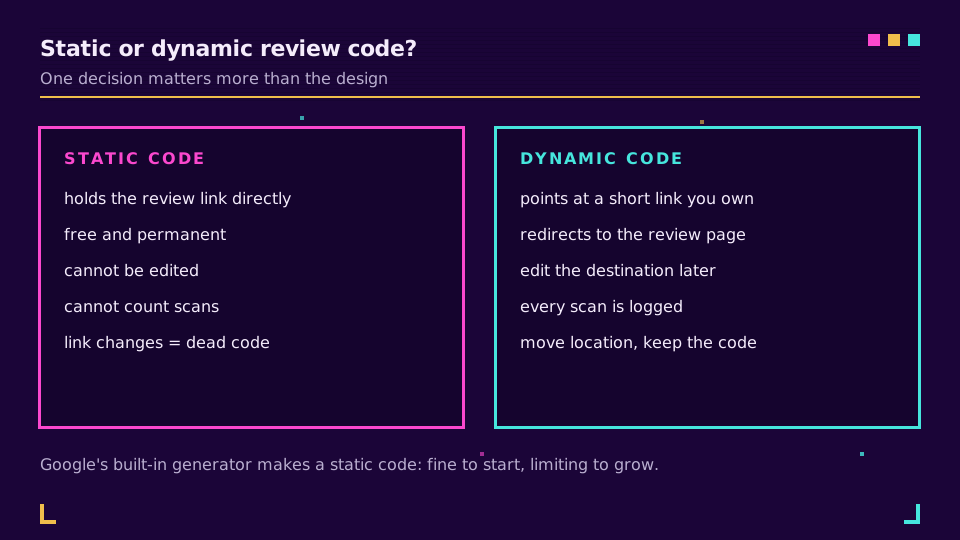
Google's built-in generator produces a plain static code, which is fine for a quick start. For a business that wants to know whether the counter card is actually working, or that might move locations, a dynamic code is the better foundation.
Step 3: Customise and Download
A code people trust is a code people scan, so make it look like yours.
Add your logo in the centre, set the colours to your brand, and keep strong contrast between the pattern and the background, because low-contrast codes fail to scan. Leave the quiet zone, the clear margin around the code, intact. Add a short call to action next to it: "Scan to rate us on Google" beats a bare code every time. If you want the design side done properly, branded QR code design covers logos, colours, and the mistakes that stop a code scanning.
Download at high resolution. A code that looks crisp on screen can turn to mush on a printed receipt, so export large and let the printer scale down.
If you want the code to be editable and measurable from the start, Elido's QR codes generate a dynamic, branded code over a short link you own, so you can retarget it and read the scans later. You can set one up on the free plan.
Step 4: Put It Where Customers Scan It
The best code in the world does nothing in a drawer. Placement is most of the result.
Put it at the point of satisfaction: the counter or till, the bottom of the receipt, a table tent, the back of a business card, the packaging, or the footer of your follow-up email. For a restaurant, the same surface that carries your menu QR code can carry the review one. The rule is simple: the code should meet the customer just after the thing they were happy about, with a phone already in reach.
Stay Within Google's Review Policy
This part protects the account you are trying to grow, so it is worth thirty seconds.
The QR code itself is allowed, and Google supports making one. What is not allowed is buying reviews with incentives, discounts, or gifts, or showing the code only to customers you expect to be positive. Google's user-contributed content policy treats incentivised and gated reviews as fake engagement, and enforcement can remove reviews or penalise the profile. Ask everyone, incentivise no one, and let the ratings be honest. That is also the only way the reviews stay up.
Track What the Code Is Doing
If you went dynamic in step two, you can now close the loop.
A dynamic review code logs each scan, so you can see how many people scanned, when, and on which device, and match that against the reviews that actually landed. That tells you whether the table tent outperforms the receipt, or whether a location is printing the code at all. How to track QR code scans walks through reading that data.
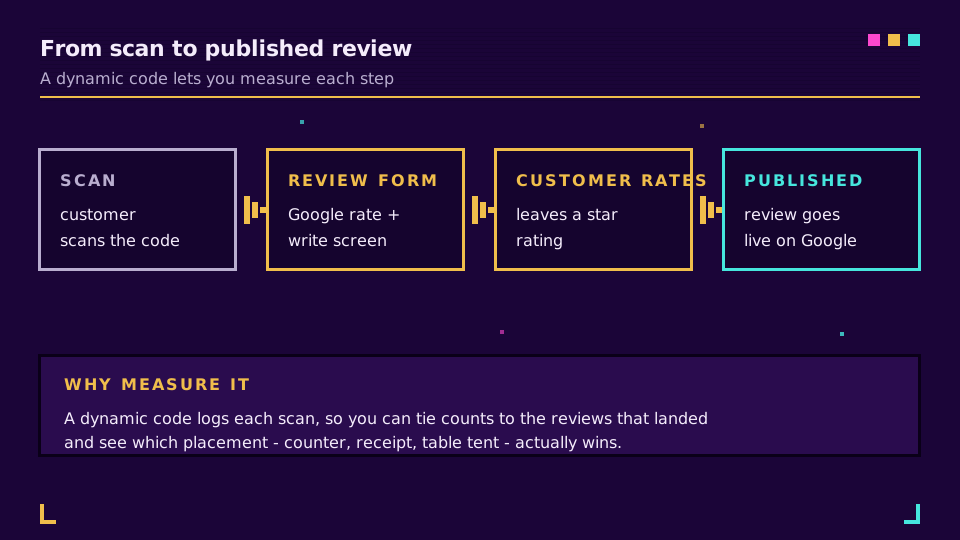
Measured or not, the mechanics are the same: put an honest, well-placed code in front of every customer, and the reviews follow.
Related on the Blog
Frequently asked questions
How do I create a QR code for Google reviews?
Get your Google review link from your Business Profile, then encode that link as a QR code. Open your Business Profile, choose the option to ask for reviews, and copy the short review link Google generates. Paste it into a QR code generator, customise and download, then print it where customers can scan. Google can also generate a basic code for you directly in that same screen.
Where do I find my Google review link?
In your Google Business Profile on a computer, open the profile and select the option to get more reviews or ask for reviews. Google shows a short review link, usually in the g.page/r form, with a copy button. That link opens the review-and-rating window directly, so it is the one to encode in your QR code.
Is a Google review QR code free?
Yes. The review link from your Business Profile is free, and Google can generate a basic QR code from it at no cost. Third-party generators add design and tracking but the underlying link is always free. Only pay if you want a dynamic, editable, trackable code rather than a plain static one.
Can I track how many people scan my Google review QR code?
Only if you use a dynamic QR code. A plain static code contains the review link directly and cannot count scans. A dynamic code points at a short link you control, so every scan is logged and you can see counts, times, and devices, and change the destination later without reprinting.
Do Google review QR codes break the rules?
The QR code itself is fine, and Google supports generating one. What breaks the rules is offering incentives, discounts, or gifts in exchange for reviews, or asking only happy customers. Google treats incentivised and gated reviews as fake engagement. Point the code at everyone and let the rating be honest.
Try Elido
Paste a URL, get a working short link
No signup. Link lives for 30 days. Sign up to keep it forever.
Free, no signup required · 2 per day