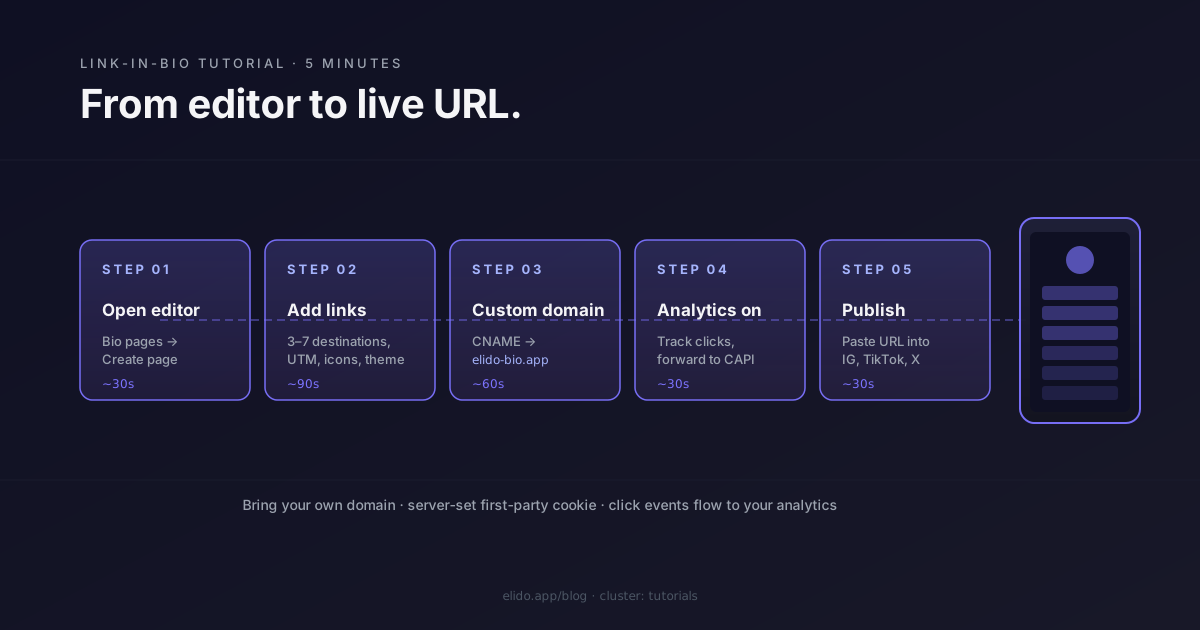
A link-in-bio page is one of the simplest pieces of web infrastructure a creator or small business needs. A single URL, a vertical list of destinations, a clean visual identity. It exists because social platforms only allow one clickable link in the bio field — your job is to choose what to do with it.
This tutorial walks through building one in five minutes using Elido's bio pages. The end state: a working bio page on your own domain, with analytics, no third-party iframe, and a deploy you control. The path matters because most bio-page tools route through their own infrastructure, which means your branded URL ends up looking like linktr.ee/your-name regardless of what domain you wanted to use.
If you want the theoretical background — why bio pages exist, what the design tradeoffs are — the bio pages for creators post covers the strategy. This post is the tutorial.
Before you start#
You will need three things:
- An Elido account. Free tier is enough for a single bio page; Pro adds custom domains. Sign up at
/pricing. - A destination list. Three to seven links is the sweet spot — more than ten and visitors start scrolling.
- Optional: a domain you control. If you skip this step the bio page lives at
bio.elido.app/your-slug, which works but is not branded. Bringing your own domain takes two minutes including DNS propagation.
That is the full pre-requisite list. No build tooling, no Vercel account, no design files.
Step 1: open the bio editor#
Sign in to the Elido dashboard. The left nav has a Bio pages entry; click it. The page list will be empty on a new account. Click Create page.
The editor opens with two panels. Left panel: configuration — slug, theme, links, settings. Right panel: live preview of how the page will render on mobile.
The slug is what comes after the domain. If your domain is bio.your-name.com and the slug is links, the published URL is bio.your-name.com/links. You can also set the slug to empty if you want the bio page to live at the domain root.
Set the slug. The default visibility is unlisted — the page is not discoverable through search engines or the Elido directory unless you toggle the public flag in settings.
Step 2: add your links#
Each link is a destination URL plus a label. Click Add link, paste the URL, type the label. Drag to reorder.
The labels are what visitors see. The destinations are what the click resolves to. The most common pattern:
- The current campaign or release at the top.
- A few permanent links — your shop, your newsletter, your community.
- Recent content — latest YouTube video, latest podcast episode, latest blog post.
For an Instagram audience, the link order matters more than for a website audience. Visitors scroll a bio page on a phone, on a small screen, often with the keyboard open. The top two links capture most of the click volume; everything below the fold sees a steep drop-off.
Each link can optionally have:
- An icon — from the built-in set (
shop,mail,youtube,linkedin,github,discord, more) or a custom upload. - A subtitle — a one-line description that renders smaller under the label.
- An expires-at timestamp — useful for time-bound launches. The link auto-hides after expiry.
- UTM parameters — appended to the destination URL at click time so the destination platform's analytics knows the click came from the bio page.
The UTM step is the one most worth setting. Without UTMs, every click on the bio page lands on your destination as direct traffic, and you cannot separate bio-driven visits from other channels in your analytics. With utm_source=bio set across all links, your analytics platform attributes the traffic correctly.
Step 3: pick a theme#
The bio editor ships with four themes — Default, Mono, Bright, Custom — and each is configurable on three axes: background, text colour, button style.
The Default theme uses Elido's purple-indigo gradient and is the right choice for testing. Switch to Mono once you know what you are building; it gives you a black-and-white page with a single accent colour you choose. Bright is a high-contrast theme for visual brands. Custom gives you full control over hex codes and CSS variables.
Two design notes that apply regardless of theme:
- Avatar size: the avatar at the top of the page should be 400×400 minimum. Smaller images get upscaled and look fuzzy. The renderer crops to a circle and applies a subtle shadow.
- Background contrast: if you set a custom background image, the renderer applies a 50% darkening overlay so the text remains readable. You can disable the overlay if your image is already low-contrast, but the default produces better legibility on most phones.
A bio page is one of the few places where dark-mode preference matters less than usual — most visitors arrive from Instagram or TikTok with the destination page launching in the platform's in-app browser, which renders the bio page in whatever colour scheme it likes. Pick a colour palette that works in both modes rather than relying on a media query.
Step 4: wire up your custom domain#
This is the step that makes the bio page yours rather than Elido's.
In the dashboard nav, open Domains. Click Add domain. Type the domain you want — for example, bio.your-name.com. The dashboard will show a DNS instruction:
Record type: CNAME
Name:        bio.your-name.com
Value:       elido-bio.app
TTL:         300
Add that record at your DNS provider. Cloudflare, Route53, NameCheap, OVH — the interface is different at each one, but the record itself is the same. The TTL is suggested at 300 seconds to make subsequent changes propagate quickly; you can raise it later once the domain is stable.
Within 60 seconds of the record being live, the Elido dashboard will detect the CNAME, issue a TLS certificate via Caddy's on-demand TLS (using Let's Encrypt as the issuer), and mark the domain as Active. Renewal is automatic. The custom domain TLS post covers the underlying mechanism if you want to understand what is happening.
Once the domain is active, go back to your bio page's settings tab and select the custom domain from the dropdown. The published URL changes to your branded URL immediately.
Two things that can go wrong here:
- DNS provider strips the CNAME at the apex. If you tried to point
your-name.com(the apex domain) atelido-bio.app, most providers will reject the CNAME because DNS does not allow CNAME at the apex. Use ALIAS or ANAME instead, or point a subdomain likebio.your-name.comrather than the apex. Cloudflare's CNAME flattening handles this transparently; most other providers do not. - An existing AAAA record blocks the CNAME. If the domain previously pointed somewhere else with both A and AAAA records, delete those before adding the CNAME. CNAME records cannot coexist with A or AAAA records at the same name in DNS.
If you see a DNS error in the dashboard, the message will name the conflict. The custom domains for short links walkthrough covers the full DNS troubleshooting workflow.
Step 5: switch on analytics#
Open the bio page's settings tab. There are three toggles:
- Track clicks — records each click to a link on the page. Default on. The click event includes the link label, destination URL, referrer, country, and device type (no full IP — the network prefix is what persists, per the GDPR posture).
- Track views — records page loads. Default off; turn it on if you want to know how many visitors saw the page without clicking anything.
- Forward conversions to platform pixels — sends a
PageViewandClickevent to your configured Meta CAPI, GA4 Measurement Protocol, or TikTok Events API destinations. Off by default; configure platform credentials inSettings > Conversion forwardingbefore turning this on.
The bio page's analytics live alongside your regular link analytics in the dashboard. The breakdown views (country, referrer, device, time-of-day) work the same way as for individual links. The short link analytics post covers which metrics to focus on.
For high-traffic creators (more than 100k page views per month), the bio analytics scale automatically — the same ClickHouse pipeline that handles regular link analytics handles bio click events without sampling.
Step 6: publish and put the URL in your bio#
In the editor's top-right corner, the page status starts as Draft. Click Publish to make it live.
The page renders at your URL — bio.your-name.com/your-slug if you set up the custom domain, or bio.elido.app/your-slug if you skipped that step. Open it in an incognito window to see what visitors will see.
Update your social bios:
- Instagram:
Edit profile > Websitefield. - TikTok:
Edit profile > Websitefield. (TikTok limits the field to one URL.) - X/Twitter:
Edit profile > Websitefield. - LinkedIn:
Edit intro > Website(under Contact info on company pages). - YouTube:
Customise channel > Basic info > Links.
The propagation delay between updating Instagram and the link appearing live in your bio is usually under a minute. The propagation delay for TikTok's bio is sometimes several hours depending on the account's region.
What to do after publishing#
Five things, in order of impact:
Add UTM parameters to each link in the editor. This is the single most useful post-launch step. Set utm_source=bio on every link; vary utm_medium per platform (utm_medium=instagram, utm_medium=tiktok) if you maintain separate bio pages for separate platforms.
Wait 48 hours, then check the heatmap. The bio analytics dashboard shows a time-of-day heatmap. Most creators see distinct evening peaks (post-work, post-school). If your audience clusters in a specific window, scheduling content for the hour before that window improves bio-page traffic.
Add an A/B test on the top link. Elido supports two destination variants on a single link entry, split by weighted random. Use it on your top link — most-clicked link — to test which destination converts. The A/B testing landing pages post covers the mechanics.
Wire up conversion forwarding. If your top link goes to your shop or your sign-up flow, configuring Meta CAPI or GA4 server-side tracking means the bio click is attributed to your paid acquisition funnel correctly. The server-side conversion tracking post covers the full integration. Without it, bio traffic shows up as direct traffic in your acquisition reports and is uncomparable to your paid channels.
Subscribe to webhook events. If you have a downstream system — a Slack channel, a Customer.io list, an internal analytics database — you can subscribe to bio.click events for real-time delivery. Configure at /settings/webhooks and verify signatures per the webhooks integration guide.
Common gotchas#
Instagram's mobile in-app browser caches aggressively. A visitor who clicks your bio link, lands on a destination, then comes back through the bio link a few minutes later may see a cached page rather than the current state. This is not Elido — it is Instagram's WebView caching. Use a Cache-Control: no-store header on the destination if cache freshness matters; the bio page itself does not cache.
TikTok strips referrer headers. A click from TikTok's in-app browser arrives at your destination with referrer: "". The bio page's referrer breakdown will show those clicks as "Direct". This is platform behaviour, not a bug in the analytics. You can detect TikTok traffic from the user-agent string if you need to segment by platform.
An expired campaign link disappears from the page. If you set expires_at on a link, it stops rendering after the timestamp. Visitors who had bookmarked the page see one fewer link than before — this is the intended behaviour for time-bound launches, but it can surprise creators who forgot they set an expiry.
Custom domain DNS changes can take longer than 60 seconds. The 60-second target is a typical case; some DNS providers cache aggressively and propagation can take up to 24 hours for the certificate to issue. If the dashboard shows the domain as Pending TLS for more than an hour, check the DNS troubleshooting section of the docs.
Related reading#
- Bio pages for creators: what to put above the fold — the strategy post for what to put on a bio page.
- Track UTM campaigns end-to-end without a CDP — the cornerstone for the tutorials cluster.
- Short link analytics — what to measure and what to ignore — which metrics from your bio page traffic are worth tracking.
- Custom domain TLS in 5 minutes — the underlying TLS issuance mechanism.
- Setup branded short links on your domain — adjacent tutorial for the regular short-link surface.
- Operational walkthrough: bio pages guide in the docs.
- Product surface:
/features/bio-pagesand/solutions/marketers.