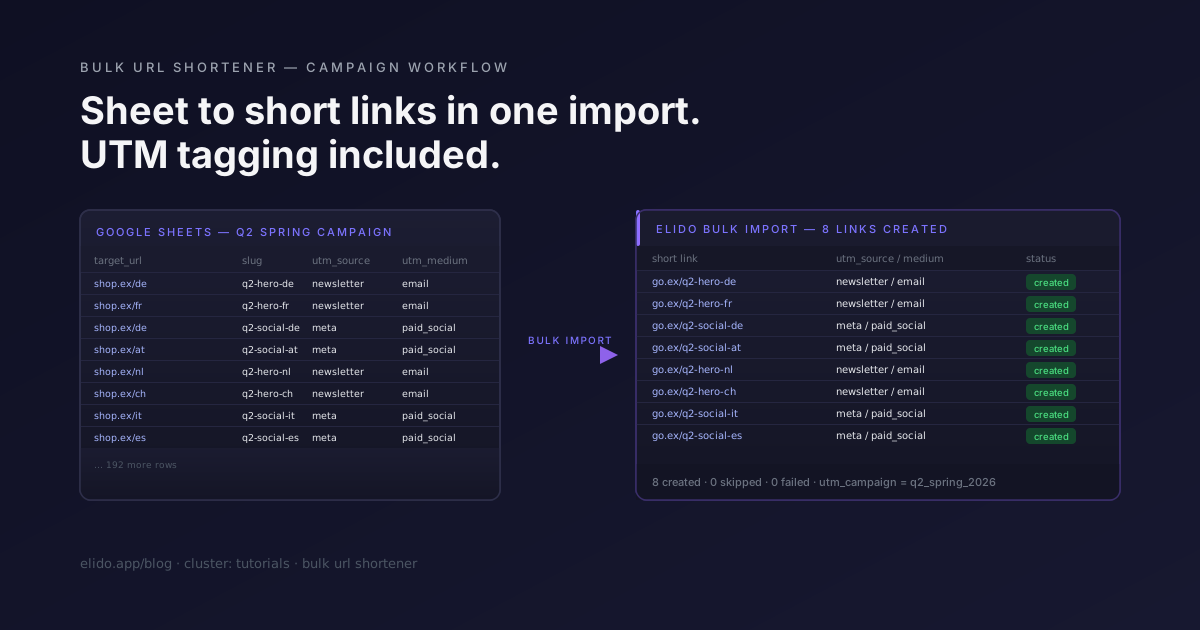
Запуск кампаній починається не в дашборді. Він починається в таблиці, якою хтось поділився в Slack. URL-адреси знаходяться в стовпці A, метадані UTM заповнюють стовпці від B до G, слаги знаходяться в стовпці H, а в бріфі сказано, що запуск завтра. Найповільніша частина всього процесу - це копіювання кожного рядка в інтерфейс скорочувача по одному посиланню за раз - не тому, що це технічно складно, а тому, що немає причин робити це саме так.
Цей допис присвячений прямому робочому процесу: як виглядає таблиця, як вона співвідноситься з ендпоінтом масового імпорту Elido, три шляхи імпорту залежно від кількості рядків, етап dry-run, який виловлює помилки до того, як вони потраплять у продакшн, та фрагмент Apps Script, який автоматизує весь процес за тригером. Для ширшого контексту наскрізної гігієни UTM, наріжний камінь відстеження UTM детально описує шаблони робочого простору та серверне пересилання конверсій. Цей допис - це частина цього конвеєра, присвячена переходу від таблиці до коротких посилань.
TL;DR
- Ведіть одну таблицю на кампанію:
target_url,slug,utm_source,utm_medium,utm_campaign,tagsяк іменовані стовпці. Порожні стовпці UTM заповнюються з шаблону вашого робочого простору. - Три шляхи імпорту: вставка рядків в інтерфейс (до 1 000 рядків), завантаження CSV (до 10 000 рядків) або API за допомогою скрипта (необмежено, з можливістю повторення).
- Завжди спочатку запускайте з
dry_run=true. Попередній перегляд показує розпізнане коротке посилання та повністю сформований рядок запиту UTM без збереження змін. - Додавайте префікси до слагів кампаній (
q2-,jun-), щоб розділити їхній простір імен. Конфлікти виявляються під час dry-run, а не посеред імпорту.
Структура таблиці
Обов'язковими стовпцями є target_url та один із двох: slug або auto_slug. Все інше є необов'язковим, але має визначену інтерпретацію за наявності.
| Стовпець | Обов'язково | Примітки |
|---|---|---|
target_url | так | Повний URL призначення, включаючи протокол |
slug | один із двох | Бажано - дає вам передбачувані короткі URL |
auto_slug | один із двох | Встановіть true, і Elido згенерує слаг |
utm_source | необов'язково | Перевизначає значення з шаблону робочого простору |
utm_medium | необов'язково | Перевизначає значення з шаблону робочого простору |
utm_campaign | необов'язково | Перевизначає значення з шаблону робочого простору |
utm_content | необов'язково | Зазвичай креативний варіант |
utm_term | необов'язково | Платне ключове слово або сегмент аудиторії |
tags | необов'язково | Розділені комами, застосовуються до посилання |
title | необов'язково | Відображається в списку посилань у дашборді |
Правило для UTM просте: якщо target_url вже містить параметр запиту ?utm_source= (або будь-який utm_*), ці значення передаються без змін. Жодного перезапису чи об'єднання. Якщо цільовий URL не має параметрів UTM, Elido створює їх зі стовпців UTM, використовуючи шаблон вашого робочого простору для будь-якого порожнього стовпця. Це важливо на практиці - деякі команди використовують попередньо теговані цільові URL-адреси для свого сервісу розсилок, а інструмент масового імпорту, який непомітно перетеговує їх, ламає аналітику. Elido попереджає про рядки зі змішаним режимом (деякі UTM присутні, деякі відсутні) і просить підтвердження.
Стовпець тегів заслуговує окремої примітки. Значення - це рядки, розділені комами: campaign:q2-spring, channel:paid-social, variant:hero-a. Ця трискладова структура (dimension:value) дає вам осі для фільтрації в дашборді без необхідності окремої конфігурації таксономії. Докладніше про це в розділі про таксономію тегів нижче.
Три шляхи імпорту
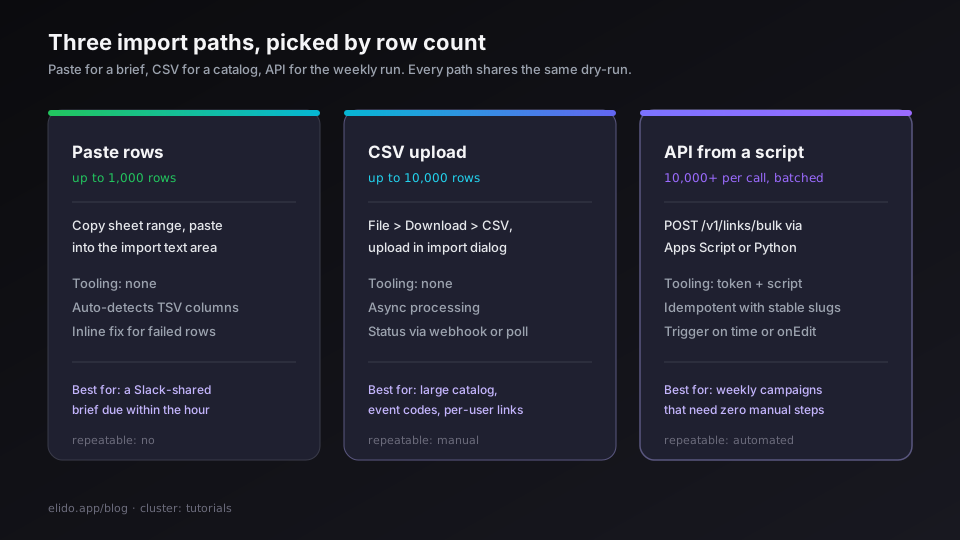
Вставка рядків в інтерфейс масового імпорту (до 1 000 рядків)
Для всього, що містить менше 1 000 рядків, найшвидшим шляхом є копіювання діапазону таблиці та вставка в текстове поле масового імпорту. Інтерфейс Elido автоматично розпізнає значення, розділені табуляцією, при вставці з електронної таблиці та зіставляє стовпці за заголовками. Вам не потрібно експортувати CSV; ви просто вставляєте дані.
Якщо бріф ведеться в Excel, а не в Sheets, як скоротити URL в Excel розповідає про чотири способи зробити це там, включно з тим, чому формула WEBSERVICE тут не допоможе.
Це добре працює для найпоширенішого випадку: бріф кампанії, який уже є в Google Sheets, дедлайн запуску через годину і відсутність бажання писати скрипти. Інтерфейс показує попередній перегляд усіх рядків перед фіксацією (той самий dry-run, який ви отримали б через API) і дозволяє виправити будь-які невдалі рядки безпосередньо в полі перед продовженням.
Один нюанс: якщо ваша таблиця має об'єднані клітинки або складне форматування, вставка може дати некоректний результат. Надійний крок для будь-якої таблиці з нетривіальною структурою - спочатку скопіювати її на чистий аркуш (вставити як значення), а потім вставити очищений діапазон в інтерфейс імпорту.
Завантаження CSV (до 10 000 рядків)
Для запусків з понад 1 000 рядків (великі каталожні кампанії, коди подій, персоналізовані посилання) шлях завантаження CSV обробляє до 10 000 рядків. Експортуйте таблицю як CSV (Файл > Завантажити > CSV) і завантажте її в діалоговому вікні імпорту. Зіставлення заголовків стовпців ідентичне; різниця полягає в тому, що великі завантаження обробляються асинхронно і повідомляють про свій статус через вебхук або ендпоінт опитування.
Експорт CSV з Google Sheets через API (доступ за 2026-05-12) підтримує експорт іменованого діапазону, а не всієї таблиці, що корисно, коли ваша таблиця кампанії має кілька вкладок або рядків заголовків, які ви не хочете очищати вручну.
Виклик API зі скрипта (більше 10 000 рядків або повторні запуски)
Для великих каталогів або для кампаній, які запускаються щотижня і потребують автоматизації того самого процесу, шлях через API є правильним. Два поширені варіанти реалізації: Apps Script (не потребує локальних інструментів, працює в браузері) та Python (краще для команд з існуючими конвеєрами даних). Ендпоінт в обох випадках однаковий.
curl -X POST \
  https://api.elido.app/v1/links/bulk \
  -H "Authorization: Bearer $ELIDO_TOKEN" \
  -H "Content-Type: multipart/form-data" \
  -F "csv=@q2_spring_links.csv" \
  -F "campaign_id=cmp_8a2f" \
  -F "dry_run=false" \
  -F "on_conflict=skip"
Параметр on_conflict визначає, що відбувається, коли слаг уже існує: skip залишає існуюче посилання і реєструє попередження, fail перериває весь імпорт при першому ж конфлікті, а replace оновлює місце призначення існуючого посилання. Для більшості імпортів кампаній skip є правильним вибором за замовчуванням: повторний запуск того самого CSV не перезапише вже створені посилання.
API приймає до 10 000 рядків за один виклик. Для більших каталогів виконуйте завантаження частинами по 5 000 рядків; кожен виклик є незалежним та ідемпотентним, якщо ви використовуєте стабільні слаги.
Попередній перегляд dry-run
Запускайте кожен імпорт з dry_run=true перед фіксацією. Відповідь ідентична реальному імпорту (кожен рядок показує розпізнане коротке посилання, розібраний рядок запиту UTM, список тегів та будь-які попередження), але нічого не записується в базу даних.
Речі, які виявляє dry-run і які ви не помітите інакше до запуску:
- Слаг у рядку 14, який конфліктує з існуючим посиланням у вашому робочому просторі (відображається як попередження про конфлікт)
- Стовпець UTM, який був випадково залишений порожнім (Elido позначає відсутність
utm_mediumяк попередження, а не критичну помилку, але про це варто знати до запуску) target_urlз пробілом у кінці, який зберігся після копіювання з таблиці (розпізнаний URL виглядає нормально в CSV, але фактичне місце призначення має додане%20)- Значення тегів, що перевищують 32 символи (мовчазно обрізаються; dry-run робить збережене значення видимим)
Відповідь dry-run розбита на сторінки у тому ж форматі, що й результат реального імпорту. Відкрийте першу сторінку, вибірково перевірте рядок 2 (перший рядок даних після вашого, ймовірно, ідеального рядка 1) та останній рядок. Потім подивіться на будь-які рядки, позначені попередженням. Дві хвилини перегляду виявляють помилки, які інакше проявилися б як «чому це посилання на кампанію видає 404?» на наступний ранок після запуску.
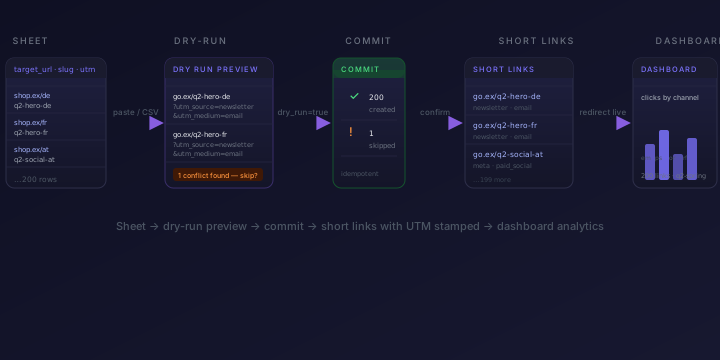
Конфлікти слагів
Конфлікти слагів виникають, коли слаг, який ви намагаєтеся імпортувати, уже існує у вашому робочому просторі або на вашому власному домені. Імпорт відображає їх у відповіді dry-run із типом конфлікту (same_workspace, same_domain, reserved) та цільовим URL існуючого посилання.
Практичним рішенням є використання просторів імен. Додавайте до слагів кампаній короткий ідентифікатор: q2-, jun26-, sm- (для соціальних мереж), em- (для email). Малоймовірно, що такий слаг, як q2-spring-hero-a, конфліктуватиме з чимось із попередньої кампанії. Префікси також роблять фільтрацію в дашборді очевидною - усі посилання з тегом q2-* належать до одного кварталу кампанії.
Один випадок, про який варто згадати: якщо ви мігруєте з іншого скорочувача і хочете зберегти старі слаги, спочатку імпортуйте їх без префікса, а потім використовуйте префікси для нових матеріалів кампанії. Масовий імпорт Elido підкаже вам під час dry-run, чи конфліктують старі слаги з тими, що вже є в робочому просторі.
Таксономія тегів
Теги, застосовані під час імпорту, отримують таку ж трискладову структуру, як і стовпці таблиці, що їх сформували: campaign:q2-spring, channel:email, variant:hero-a. Коли ви пізніше відкриєте дашборд і відфільтруєте за channel:email, ви не будете перебирати довільні рядки тексту - ви будете робити запит до послідовної таксономії.
Назви вимірів (campaign, channel, variant) походять від угод вашої команди, а не від будь-якої схеми, нав'язаної Elido. Обмеженням є формат: двокрапка як роздільник, відсутність пробілів у ключі, значення менше 32 символів. Команди, які впроваджують це в таблиці (стовпець tags, який формула будує як "campaign:"&E2&", channel:"&F2), ніколи не мають неправильно сформованих тегів у дашборді. Команди, які дозволяють стовпцю тегів бути довільним текстом, стикаються з проблемою очищення вже через три кампанії.
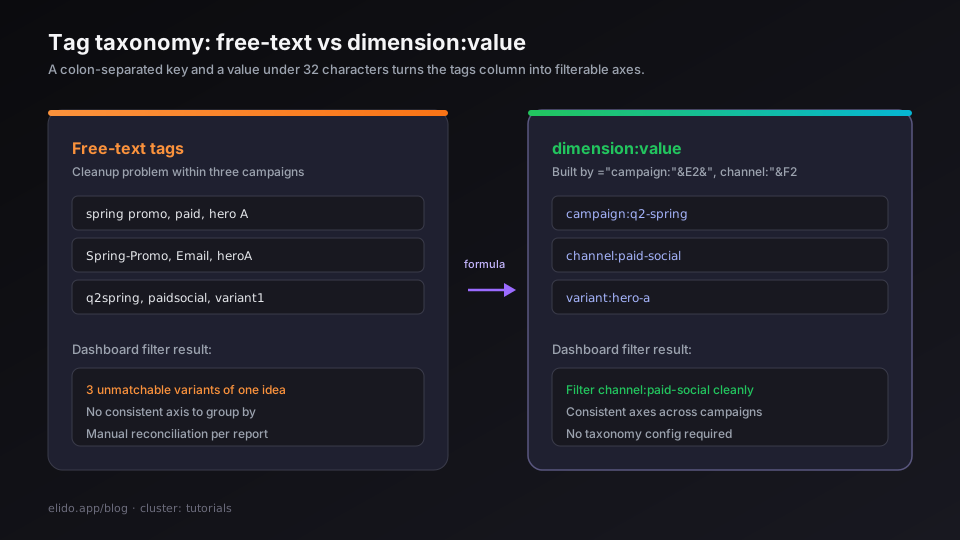
В огляді функцій кампаній групування на основі тегів є основним способом, за допомогою якого Elido групує кліки за вимірами кампанії в аналітичній панелі - тож таксономія, яку ви визначите в таблиці, буде таксономією, за якою ви будете фільтрувати результати у звітах.
Автоматизація за допомогою Apps Script
Для команд, які щотижня запускають одну й ту саму структуру кампаній (посилання на розсилки, посилання на платну рекламу в соцмережах, варіанти email-ів), правильним кроком буде повна автоматизація імпорту. Google Apps Script працює в браузері, має доступ до даних таблиці та може запускатися за тригером часу або після відправки форми.
Схема така: спрацьовує тригер, скрипт зчитує всі рядки таблиці, які не мають значення short_link у стовпці I, відправляє їх POST-запитом до API масового імпорту і записує створені короткі посилання назад у стовпець I. При наступному спрацьовуванні тригера вже імпортовані рядки пропускаються, оскільки стовпець I заповнений.
// Google Apps Script - bulk import new rows via Elido API
// Trigger: time-driven, every hour (or on form submit)
// Docs: https://developers.google.com/apps-script/guides/triggers (accessed 2026-05-12)

function importNewLinks() {
  const sheet =
    SpreadsheetApp.getActiveSpreadsheet().getSheetByName("Q2 Spring");
  const data = sheet.getDataRange().getValues();
  const headers = data[0];

  const urlCol = headers.indexOf("target_url");
  const slugCol = headers.indexOf("slug");
  const srcCol = headers.indexOf("utm_source");
  const medCol = headers.indexOf("utm_medium");
  const campCol = headers.indexOf("utm_campaign");
  const tagsCol = headers.indexOf("tags");
  const doneCol = headers.indexOf("short_link"); // write back here

  const newRows = [];
  const rowIndexes = [];

  for (let i = 1; i < data.length; i++) {
    const row = data[i];
    if (!row[urlCol] || row[doneCol]) continue; // skip empty or already imported
    newRows.push({
      destination: row[urlCol],
      slug: row[slugCol] || undefined,
      utm_source: row[srcCol] || undefined,
      utm_medium: row[medCol] || undefined,
      utm_campaign: row[campCol] || undefined,
      tags: row[tagsCol]
        ? String(row[tagsCol])
            .split(",")
            .map((t) => t.trim())
        : [],
    });
    rowIndexes.push(i);
  }

  if (!newRows.length) return;

  const payload = JSON.stringify({
    links: newRows,
    campaign_id: "cmp_8a2f",
    on_conflict: "skip",
  });

  const resp = UrlFetchApp.fetch("https://api.elido.app/v1/links/bulk", {
    method: "post",
    contentType: "application/json",
    headers: {
      Authorization:
        "Bearer " +
        PropertiesService.getScriptProperties().getProperty("ELIDO_TOKEN"),
    },
    payload: payload,
    muteHttpExceptions: true,
  });

  const result = JSON.parse(resp.getContentText());
  const created = result.links || [];

  // Write short links back into column I
  created.forEach((link, idx) => {
    if (!link.short_url) return;
    const sheetRow = rowIndexes[idx] + 1; // 1-indexed
    sheet.getRange(sheetRow, doneCol + 1).setValue(link.short_url);
  });
}
Кілька приміток до реалізації:
Зберігайте API-токен у PropertiesService.getScriptProperties(), а не прописуйте його в коді скрипта. Документація тригерів Apps Script (доступ за 2026-05-12) охоплює налаштування як часових, так і подієвих тригерів. Для таблиці кампанії, яку команда заповнює спільно, тригер onEdit спрацьовує, коли заповнюється стовпець A; коротке посилання з'являється у стовпці I протягом кількох секунд після введення цільового URL.
Прапор muteHttpExceptions: true є важливим. Без нього помилка 422 від API викликає виняток на рівні скрипта, і тригер перестає намагатися знову. З ним ви отримуєте тіло помилки і можете його залогувати.
Для складнішої інтеграції (скрипт на Python, крок CI, який читає таблицю через Sheets API, або заплановане завдання у вашому існуючому конвеєрі даних) ендпоінт Sheets API spreadsheets.values.get (доступ за 2026-05-12) дає вам безпосередньо JSON. Після цього структура виклику масового імпорту ідентична прикладу з curl вище.
Поширені помилки
Пробіли в кінці слагів. Слаг, скопійований із клітинки таблиці, може мати пробіл у кінці, невидимий в інтерфейсі. Elido дозволяє це (слаг технічно валідний), але go.example.com/q2-promo з пробілом у кінці - це негарний URL, а копіювання в буфер обміну з адресного рядка браузера зазвичай видаляє його, тому людина, яка вставить коротке посилання пізніше, отримає 404. Вирішенням є формула =TRIM(H2) у стовпці слага перед експортом.
Відсутність utm_medium. Elido попереджає, але не блокує при відсутності utm_medium, оскільки деякі кампанії навмисно пропускають його. Але відсутність медіуму майже завжди є помилкою: GA4 відносить усе без нього до каналу (none), що робить атрибуцію каналів марною. Канонічне посилання на конструктор URL-адрес GA4 (доступ за 2026-05-12) зазначає utm_medium як обов'язковий для правильної роботи атрибуції кампанії. Якщо у вашому шаблоні робочого простору є значення за замовчуванням для utm_medium, порожні клітинки в стовпці успадкують його; якщо ні, попередження dry-run - це ваш останній шанс помітити це.
Значення тегів понад 32 символи. Elido мовчазно обрізає значення тегів, що перевищують 32 символи. Обрізка невидима в попередженнях dry-run, якщо ви не шукаєте її (відповідь показує збережене значення, а не оригінальне). Довгі значення тегів зазвичай виникають при вставці назв кампаній UTM у стовпець тегів: spring-2026-dach-email-reactivation-week3 має 42 символи і в дашборді перетвориться на spring-2026-dach-email-reactivation-we. Зберігайте значення вимірів тегів короткими; перенесіть детальні метадані в заголовок посилання.
Забутий dry_run=true при повторних запусках. Якщо ви повторно запускаєте завантаження CSV для кампанії, де вже є посилання, on_conflict=skip є безпечним, але on_conflict=replace оновить цільові URL для будь-якого слага, який з'являється як у старому, так і в новому CSV. У кампанії, де цільові URL не змінилися, це нешкідливо. У кампанії, де ви оновили URL-адреси цільових сторінок під час роботи, це саме те, що вам потрібно. Знайте, у якому режимі ви перебуваєте, перш ніж фіксувати зміни.
Підсумок: від налаштування до запуску
Найповніша версія цього робочого процесу: один раз створіть таблицю зі стабільними назвами стовпців, визначте шаблон UTM робочого простору, щоб порожні стовпці UTM успадковували розумні значення за замовчуванням (описано в налаштуванні брендованих коротких посилань), запустіть dry-імпорт, щоб виявити конфлікти та попередження, зафіксуйте зміни та налаштуйте тригер Apps Script, щоб наступна кампанія вимагала нуль ручних кроків.
Для шару атрибуції, який замикає цикл після кліку, серверне відстеження конверсій описує, як передати click_id з відповіді Elido про редирект до Meta CAPI та GA4 - серверна частина, яка витримує Safari ITP та втручання блокувальників реклами. Цей допис і попередній разом дають вам повну картину робочого процесу рішень для маркетологів, від таблиці до короткого посилання та атрибутованої конверсії.
Повний спектр управління URL-адресами кампаній - шаблони, масовий імпорт, групування кампаній, пересилання конверсій - знаходиться на сторінці функцій кампаній.
Спробуйте Elido
Вставте URL - отримайте коротке посилання
Без реєстрації. Посилання живе 30 днів. Зареєструйтесь, щоб зберегти назавжди.
Безкоштовно, без реєстрації · 2 на день